
How to make on-brand social posts with ChatGPT and Claude
Connect JamFrame to ChatGPT or Claude and ask for posts in plain words. Your assistant fills your own templates, shows you the results and schedules them.
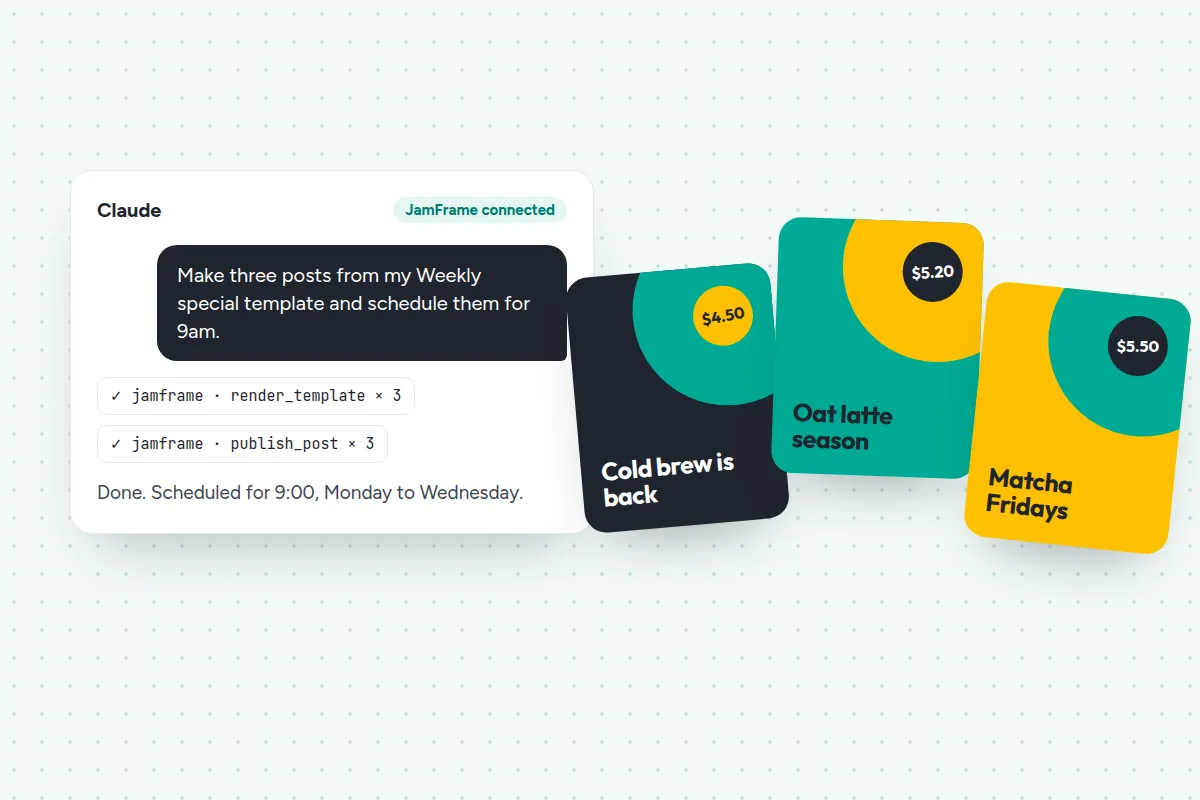
AI assistants are good at the words. Ask ChatGPT or Claude for five captions about your new menu and you’ll have them in seconds. Ask for the images and the trouble starts: a different font every time, colours that are almost yours, and a headline with a letter missing.
That’s not a prompt problem. An image model draws a new picture on every request, so it can’t promise your layout, your logo or the exact words you typed. What you want is for the assistant to write the post and then fill in your own template, the way a designer would.
That’s what connecting JamFrame does. This guide shows how to set it up and which prompts work best.
What changes when the assistant has your templates
JamFrame runs an MCP server: a standard way for AI assistants to use outside tools. Once it’s connected, your assistant can:
- find your templates and see which parts change (the headline, the price, the photo)
- fill a template and make PNG, JPEG, WebP, PDF or MP4 files
- draft a brand-new template from a description, using your brand fonts, colours and logo
- post the result to your connected social accounts, schedule it, or save a draft
- check your analytics, like your best posts and the best time to post
The assistant still writes the words. JamFrame makes sure they land in a design that looks like everything else you publish.
What you need
- A JamFrame account. The Free plan includes 100 render credits and 50 AI credits a month.
- At least one template. Start from the library or design your own.
- ChatGPT, Claude, or another assistant that supports MCP connectors.
- Optional: a connected Instagram, LinkedIn, Facebook, X, TikTok or YouTube account if you want the assistant to post for you.
1. Pick a template, or ask for one
Open Templates in JamFrame and choose a social post, story or carousel. Give the parts that change a clear name in the layer’s API settings, such as headline, price and photo. Clear names help the assistant fill the right field.
Don’t have a template yet? Once you’re connected, you can ask for one:
“Design a 1080 × 1350 Instagram post for a weekly café special, with a headline, a price badge and a photo, in my brand colours.”
The design agent drafts it with your brand library and saves it as an editable template. You can fine-tune it in the editor afterwards.
2. Connect JamFrame to your assistant
The JamFrame MCP address is https://app.jamframe.com/mcp.
- Claude: add a custom connector with that address.
- ChatGPT: add JamFrame in ChatGPT’s apps and connectors settings.
- Claude Code: run
claude mcp add --transport http jamframe https://app.jamframe.com/mcpin your terminal.
You’ll be asked to sign in to JamFrame and pick one workspace the assistant may use. It can’t see anything outside that workspace, and you can disconnect it any time under Connected Apps.
3. Ask for what you need
Now just ask. The assistant looks up your template, fills it in and shows you the files. A few prompts to start with:
- “Make my Quote Card template say ‘Ship small, ship often’ by Grace Hopper, as a PNG.”
- “Make three posts from my Weekly special template: cold brew $4.50, oat latte $5.20, matcha $5.50.”
- “Render the Coffee tips carousel as JPEGs with my logo and my brand colour for the titles.”
- “Render my Product launch reel as a video with the headline ‘Aurora One is here’.”
Be specific about the template, the values and the format. If a template has several pages, say what goes on each one.
4. Review, then post or schedule
When you’re happy with the results, tell the assistant where they go:
- “Post the Spring sale template to Instagram and Facebook tomorrow at 9am Paris time.”
- “Save a LinkedIn draft with my last render and the caption ‘New season, new menu’.”
If you’d rather check everything first, ask for drafts. They wait in JamFrame until you publish them, and every post shows up under Posts with its status.
Prompts that work well
These patterns give the most reliable results:
- Name the template. “My Weekly special template” beats “a café post”.
- Give values, not ideas, when you already know them: “$4.50”, not “a good price”.
- Batch it. “Five posts, one per weekday, at 9am” saves five conversations.
- Ask for drafts on anything public until you trust the setup.
- Close the loop. “Which of last month’s posts did best, and when should I post next week?”
What it costs
Using JamFrame through an assistant costs the same as using it anywhere else: one render credit per image or PDF page, and one per second of video. Designing or editing a template with the design agent uses 5 AI credits. Posting is free.
So a week of daily Instagram posts uses about seven render credits, well inside the Free plan.
When to use an assistant, and when to automate
An assistant is best when the work changes from week to week: a launch, a campaign, a one-off announcement. For jobs that never change, like “a post from every new row in this sheet”, a workflow is more dependable, and the assistant can still start it for you: “Run my weekly specials workflow.”
Ready to try it? Connect your AI assistant and make your first post from a chat.
Keep reading
How-to
How to turn a Google Sheet into a week of Instagram posts
Design one post, mark the parts that change, and let JamFrame fill it in from each row of a Google Sheet and post it on schedule. A step-by-step walkthrough.
API
Image generation API: when to use templates and when to use AI
AI image models and template image APIs both make images from an API call, but they solve different problems. Here's how to choose, with examples and a checklist.