
Can Claude generate images? Yes, with a connector
Can Claude generate images? Not by itself: it draws charts and diagrams with code. Connect a tool like JamFrame, and Claude makes real PNG, JPEG, PDF and MP4 files from your templates.
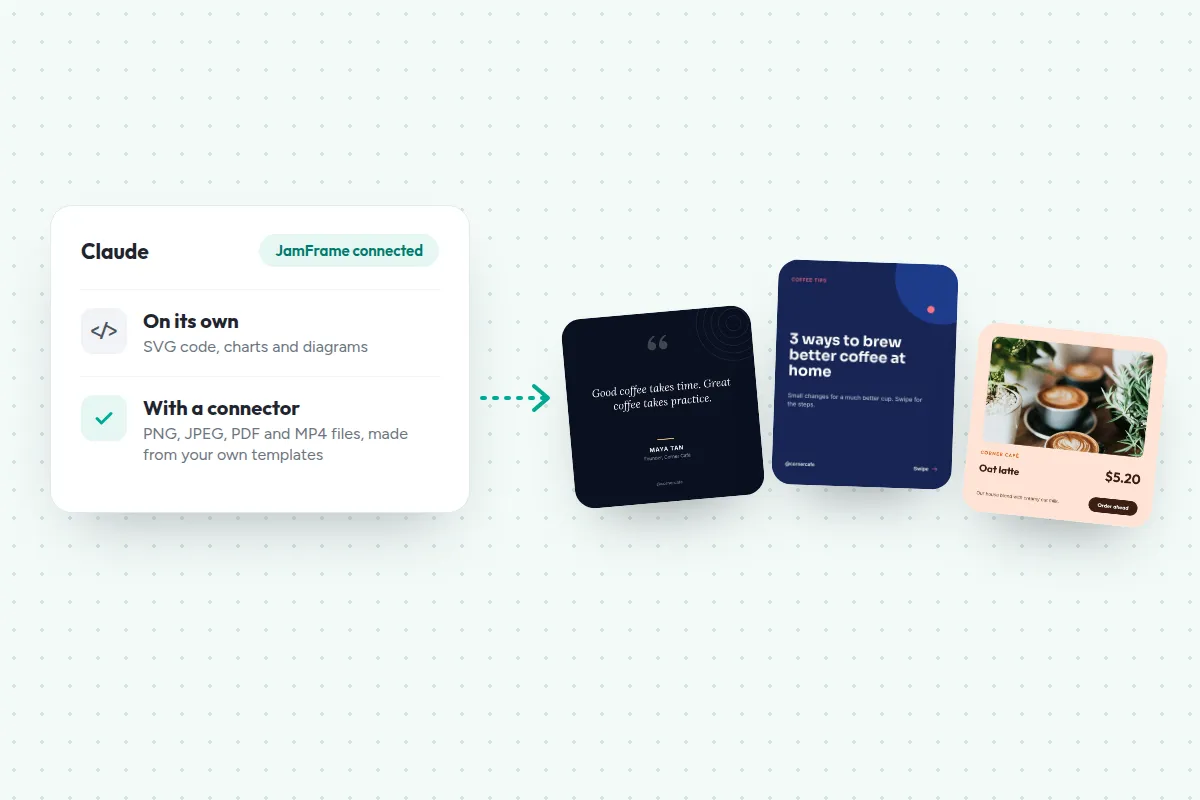
TL;DR:
Can Claude generate images? Not by itself. Anthropic says Claude “doesn’t generate photos or illustrations the way image-generation tools do.” It can draw charts and diagrams with code, and read images you upload. To make real image files, connect a tool through a connector.
- On its own: charts, diagrams, SVG and HTML visuals, and PNG charts made with code
- With the Canva or Adobe connectors: designs, and photo edits in Adobe’s apps
- With JamFrame: PNG, JPEG, PDF and MP4 files from your own templates
- Every Claude plan can add a custom connector, and the Free plan can add one
You ask Claude for an image for your next post, and you get code back, or a note that it can’t make pictures. ChatGPT and Gemini draw images, so it’s fair to ask: can Claude generate images at all?
Not on its own, but it can with a connector. Anthropic’s help center says Claude “doesn’t generate photos or illustrations the way image-generation tools do” (Claude Help Center). What Claude can do is draw with code, and use outside tools that make the images for it.
This guide covers what Claude makes on its own, which connectors fill the gap, and how to set up JamFrame, so Claude can make on-brand images from your own templates.
What you’ll make
A five-slide coffee tips carousel for a café, from one request in Claude:
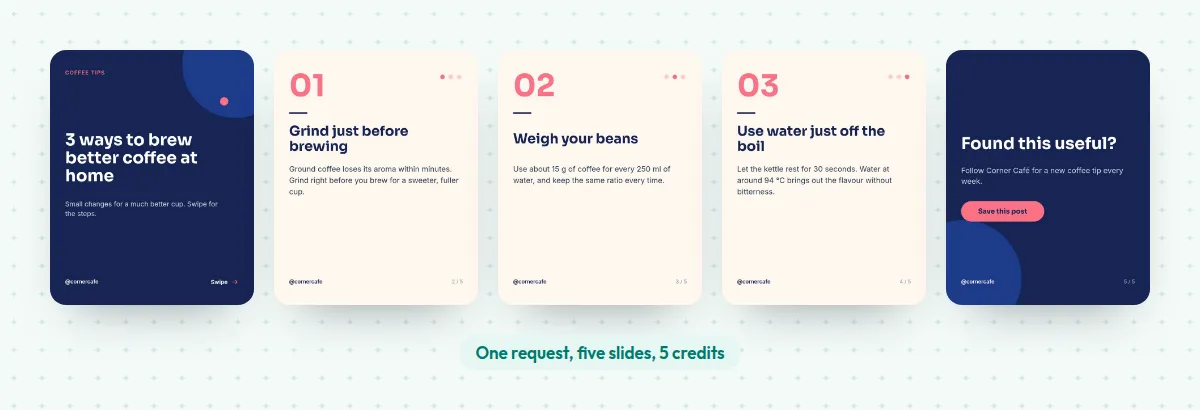
They’re real renders of the How-to guide carousel template from JamFrame’s library. When Claude renders a template, these are the files it gets back.
Can Claude generate images by itself?
Does Claude generate images on its own? No. Claude is built to understand images, not to make them. Anthropic’s API docs put it plainly: Claude is “an image understanding model only” (Claude docs). Here’s what it can do instead:
- Read images. Upload a photo or a screenshot and ask about it. “Claude can also view and analyze images you upload.”
- Draw with code. Claude builds charts, diagrams and interactive visuals right in the chat, using HTML and SVG. You can download them as
.svgor.htmlfiles. This is in beta on Claude for the web and desktop (Claude Help Center). - Save charts as images. With code execution and file creation, which every plan has, Claude “can create data visualizations in image files like PNG” (Claude Help Center).
- Build designs from code. Claude Design, from Anthropic Labs, makes prototypes, slides and one-pagers (Anthropic).
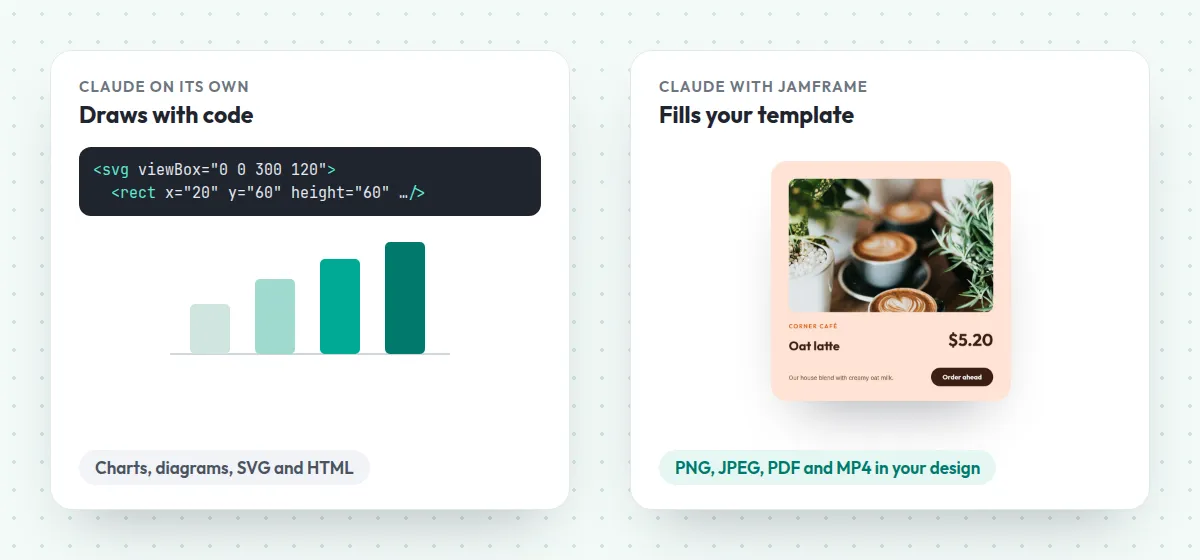
That covers a lot: a flowchart, a bar chart for a report, a simple icon. What it doesn’t cover is a photo, an illustration, or a social post that has to look like your brand every time.
Claude image generation with connectors
A connector lets Claude use an outside tool. Claude works out what to make, and the tool makes the file. Connectors use MCP, the Model Context Protocol: “an open-source standard for connecting AI applications to external systems” (modelcontextprotocol.io).
Three connectors that make visuals:
- Canva is in Claude’s connectors directory, verified by Anthropic. It can search, create, autofill and export Canva designs (Claude connectors). Designs it makes use your Canva AI allowance (Canva).
- Adobe has a connector for its creative apps, including Photoshop, Express and Firefly, with tools that fill in or extend a photo (Claude connectors).
- JamFrame fills your own templates: the design you made, with the words Claude writes. It makes PNG, JPEG, WebP, PDF and MP4 files, and can post them to your social accounts.
Every Claude plan can add custom connectors, and the Free plan can add one (Claude Help Center).
When to use which
| You need | Use |
|---|---|
| A chart, a diagram or a flowchart | Claude on its own |
| A one-off design you’ll finish by hand | Canva |
| An edit to a photo, like filling or extending it | Adobe |
| Many images in the same design, made again and again | JamFrame |
The rest of this guide sets up the last one.
1. Pick a template
In JamFrame, open Templates. Under Explore templates, pick a template, such as the How-to guide carousel or Quote card (midnight). A copy opens in the editor. Add your logo and colors, then click Save.
Library templates come with keys: short names for the parts that change, such as title or subtitle. Claude reads them to know what to fill in.
No template for the job? Once JamFrame is connected, Claude can design one from a sentence, with your brand fonts, colors and logo: “Design a 1080 × 1350 carousel for weekly coffee tips in my brand colors.” Designing a template uses 15 to 30 AI credits.
2. Add JamFrame to Claude
JamFrame isn’t listed in Claude’s connectors directory yet, so you add it yourself. It takes about two minutes:
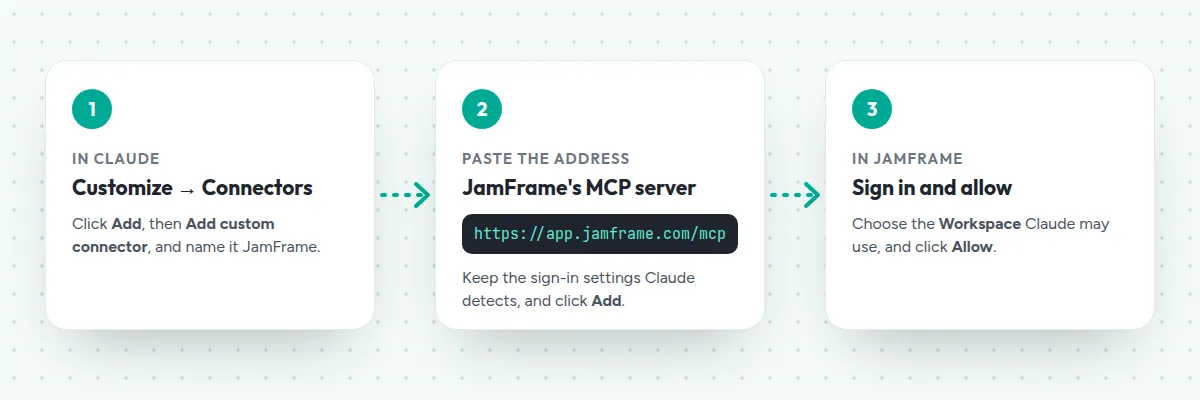
- In Claude, go to Customize, then Connectors. Click Add, then Add custom connector.
- Name it
JamFrameand paste the addresshttps://app.jamframe.com/mcp. Keep the sign-in settings Claude detects, and click Add. - A JamFrame page opens. Sign in, choose a Workspace and click Allow.
Claude can only use that one workspace. On a Team or Enterprise plan, an owner adds the connector for everyone first. The Claude setup guide has every step.
Prefer the terminal? In Claude Code, run
claude mcp add --transport http jamframe https://app.jamframe.com/mcp, then type/mcpto sign in.
3. Ask Claude to make images
In a chat, click +, then Connectors, and turn on JamFrame. Then ask in plain words:
- “Render my Coffee tips carousel as JPEGs, with my logo and my brand color for the titles.”
- “Make my Quote card say ‘Good coffee takes time. Great coffee takes practice.’ by Maya Tan, as a PNG.”
- “Design a 1200 × 630 announcement for our 4.2 release in our brand colors.”
Claude finds the template, fills it in and shows you the files. It asks before it uses a JamFrame action, so read what it’s about to do and allow it.
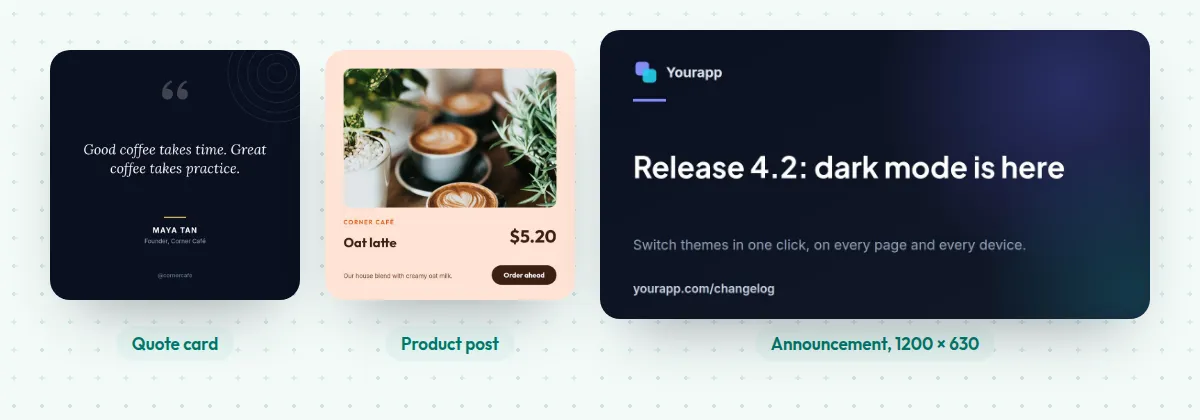
The words are exactly the ones you asked for, and the fonts, colors and layout are your template’s. Ask for the same post next week with new words, and it looks the same.
Tip: File links last 5 minutes unless you ask for longer, up to 7 days: “Give me links that last a day.” Every file is also on the Renders page in JamFrame.
4. Post it, or save a draft
Claude can also send the files on. Try: “Save a LinkedIn draft with the carousel and the caption ‘Three ways to brew better coffee’.”
JamFrame posts directly to LinkedIn and Bluesky, and to Instagram, Facebook, X, TikTok and YouTube through Buffer. Drafts wait in JamFrame until you publish them. For more prompts and posting tips, see on-brand social posts with ChatGPT and Claude.
What it costs
- Claude: custom connectors work on every plan. The Free plan can add one.
- Each image uses one JamFrame render credit, and each PDF page too. Video uses one credit per second. The five-slide carousel uses 5 credits.
- Designing a template uses 15 to 30 AI credits, and editing one 10 to 30.
- Posting is free, and so is looking up templates and checking your credits.
JamFrame’s Free plan includes 100 render credits a month, enough for a carousel a week, and 50 AI credits once.
Where to go next
- See every action Claude can take on the AI agents page.
- Make a quote post in your browser with the free quote card maker, no sign-up needed.
- Read why templates keep a brand consistent in templates vs AI.
Start free with 100 credits a month.
Keep reading
Best video editing APIs in 2026: 6 compared
The best video editing APIs in 2026: Shotstack, JSON2Video, Creatomate, Plainly, Remotion and JamFrame, with free plans, what a minute of video costs and what each is best for.
APIBest PDF generator APIs in 2026: 11 compared
The best PDF generator APIs in 2026: HTML to PDF APIs like PDFShift and DocRaptor, and template APIs like CraftMyPDF and PDFMonkey, with free tiers and prices checked on each site.