
Workflows
What a workflow is, how its steps fit together, and how to build one from a starter, with AI or step by step, then test it and switch it on.
A workflow makes files for you from rows of data. Each row of a sheet, a file, an Airtable table or a webhook call becomes one image or PDF, and JamFrame sends it where you want. You build the workflow once. After that it runs when you press a button, on a schedule, when your app calls it, or when new rows show up.
For example: every Monday at 9:00, read the rows of a Google Sheet marked “Ready”, make a quote card for each row, and post each card to a Slack channel.
The steps of a workflow
A workflow is a straight line of steps, from top to bottom:
Trigger → Source → Transforms → Render → Deliver
| Step | What it does | Choices |
|---|---|---|
| Trigger | What starts the workflow | Run Now, Schedule, Incoming webhook, New or changed rows |
| Source | Where the rows come from | Google Sheets (shared by link), CSV or XLSX file, Airtable, Webhook payload |
| Transforms | Which rows to use, in which order (optional) | Filter rows, Sort rows, Limit rows, Pick rows, Remove duplicates |
| Render | Makes one file per row from a template | PNG, JPEG, WebP or PDF |
| Deliver | Where each file goes (one or more) | Render URL, Send to a webhook, Post to Slack |
Each part has its own page:
The Workflows page
In the sidebar, under Automation, click Workflows. Under the title you see how many runs you used this month and how many workflows you have, out of what your plan allows.
The page has two tabs:
- My workflows lists your workflows. Each card shows the name, Active or Draft, what starts it, the source and the number of steps. It also shows the last run and its result, the next scheduled run, and how many things are left to finish.
- Explore has ready-made starter workflows to copy. When you have no workflows yet, the page opens here.
At the top right there are two buttons: ✨ Build with AI and New workflow.
Start a workflow
You can start in three ways.
From a starter
- Click the Explore tab. To narrow the list, click an app, such as CSV or Slack.
- On the starter you want, click Use this workflow.
- The builder opens with a draft copy. Fill in what’s missing, such as the template and the file’s link.
Two starters to try:
- CSV of quotes → quote cards in a webhook: makes a quote card for every line of a CSV file, skips repeated quotes, and sends each card to your webhook.
- New signup → welcome card in Slack: your app calls the workflow’s webhook with a new user’s details, and a welcome card goes to a Slack channel.
With AI
- Click ✨ Build with AI.
- Describe the workflow in a sentence or two: what starts it, where the rows come from and where the images go. For example: “Render a quote card for every row of a CSV file and send each one to my webhook”. You can click one of the examples to start from it.
- Optional: pick the template under Template (optional), or leave Choose later.
- Click Build workflow.
It uses about 1 AI credit; see Credits. You get a draft to check in the builder. The AI never fills in secrets, so things only you know, such as a sheet’s link or a token, are left for you.
Step by step
Click New workflow. You get a draft with four steps: Run Now → Google Sheets → Render a template → Render URL.
- Type a name at the top of the builder.
- Click a step to open its settings in the side panel, and fill them in. Start with the trigger and the source.
- To add a step, use + Add a transform or + Add a delivery. To remove one, select it and click Remove this step.
- In the render step, choose a template. Then open Preview & mapping under the steps and match the source’s columns to the template’s keys.
- Click Save.
- Click Test with 1 row, and check the result under Run history.
- When it looks right, click Activate.
The builder
The bar at the top of the builder has:
| Button | What it does |
|---|---|
| Activate | Saves and switches the workflow on. From now on it runs on its trigger. |
| Set to draft | Switches an active workflow off. It then runs only when you start it yourself. |
| Test with 1 row | Saves and starts a run with only the first row. A cheap way to check the mapping. |
| Run Now | Saves and starts a run with every row. |
| Save | Saves your changes. It is on only when there are unsaved changes. |
| Delete | Deletes the workflow and its run history. Renders it made stay on the Renders page. |
Under the bar, one line shows what starts the workflow, the next scheduled run, and the number of steps out of your plan’s limit.
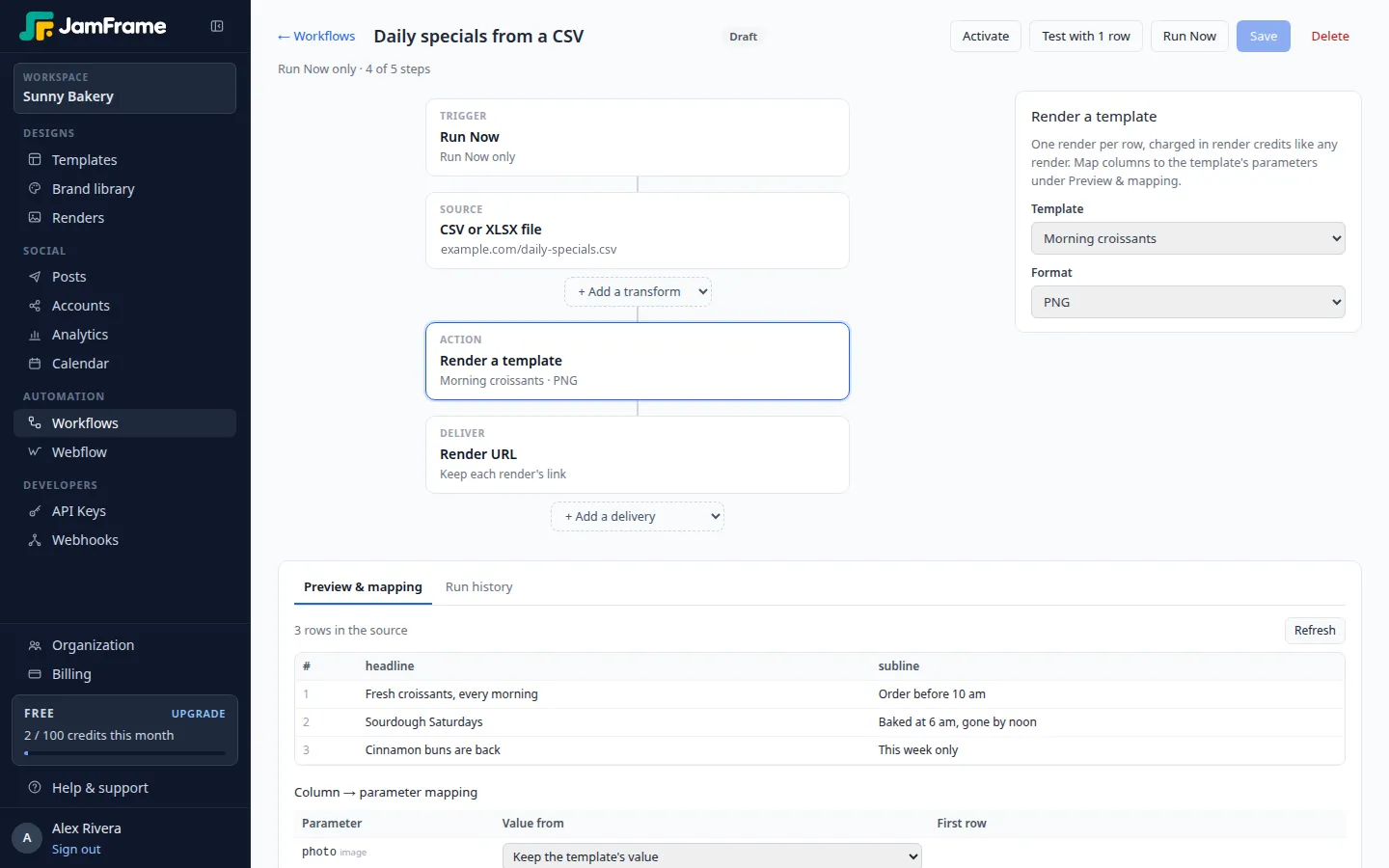
Active and draft
- A draft runs only when you press Run Now or Test with 1 row, or when your code starts it through the Workflows API. Every new workflow starts as a draft.
- An active workflow also runs on its trigger: on its schedule, when its webhook is called, or when new rows show up.
A workflow can run only when every step is complete. After you save, the line under the bar says how many things are left, such as “2 things to finish before it can run”. Each unfinished step has a number on it. Click the step to see what’s missing.
If you leave the builder with unsaved changes, it asks before you go.
Plan limits
What your plan allows for workflows depends on your plan; see pricing. The limits are:
- Workflows: how many workflows your organization can have.
- Steps per workflow: the trigger, the source, each transform, the render and each delivery count as one step each. When you reach it, the add lists say Step limit reached.
- Runs a month: runs started in a calendar month (UTC), across your organization. Test runs count.
- Runs at once: extra runs wait in a queue until one finishes.
- Rows per run: extra rows are left out, and the run says so.
Each render also uses render credits, like any render. See Credits.
Who can do what
People with editor access can create, change, run and delete workflows. People with view-only access see workflows, previews and run history, but they can’t change or run anything and never see a webhook’s secret URL. See Team and roles.
What next
- Choose what starts it and where rows come from: Triggers and sources.
- Manage workflows from your own code: Workflows API.
Last updated
Still stuck?
Email [email protected] and a real person will reply. Tell us the template you were using and what you expected to happen.