
API keys
Create an API key for your workspace, send it with every request, test it, keep it secret, and rotate or revoke it when you need to.
An API key lets your code use JamFrame without a password. Every API request sends one. This page shows how to create a key, use it, and keep it safe.
Create a key
You need editor access to the workspace. Viewers can see the list of keys, but they can’t create or revoke them.
- In the sidebar, under Developers, click API Keys.
- Click New API key. If the workspace has no keys yet, click Create your first key.
- In Name, type where you’ll use the key, such as “Website backend”. You can use up to 80 characters.
- Click Create key.
- Click Copy, and keep the key in a password manager or your server’s secret settings.
- Click I’ve saved this — close.
A key looks like jf_live_ followed by 32 letters and digits. A workspace can have up to 10 keys at a
time. Revoked keys don’t count.
The key list
The API Keys page lists the workspace’s keys:
| Column | What it shows |
|---|---|
| Name | The name you gave the key. |
| Key | The start and end of the key, like jf_live_AbCdEfGh...wxyz, so you can tell keys apart. |
| Created | When the key was made. |
| Last used | When a request last used the key, or “Never”. |
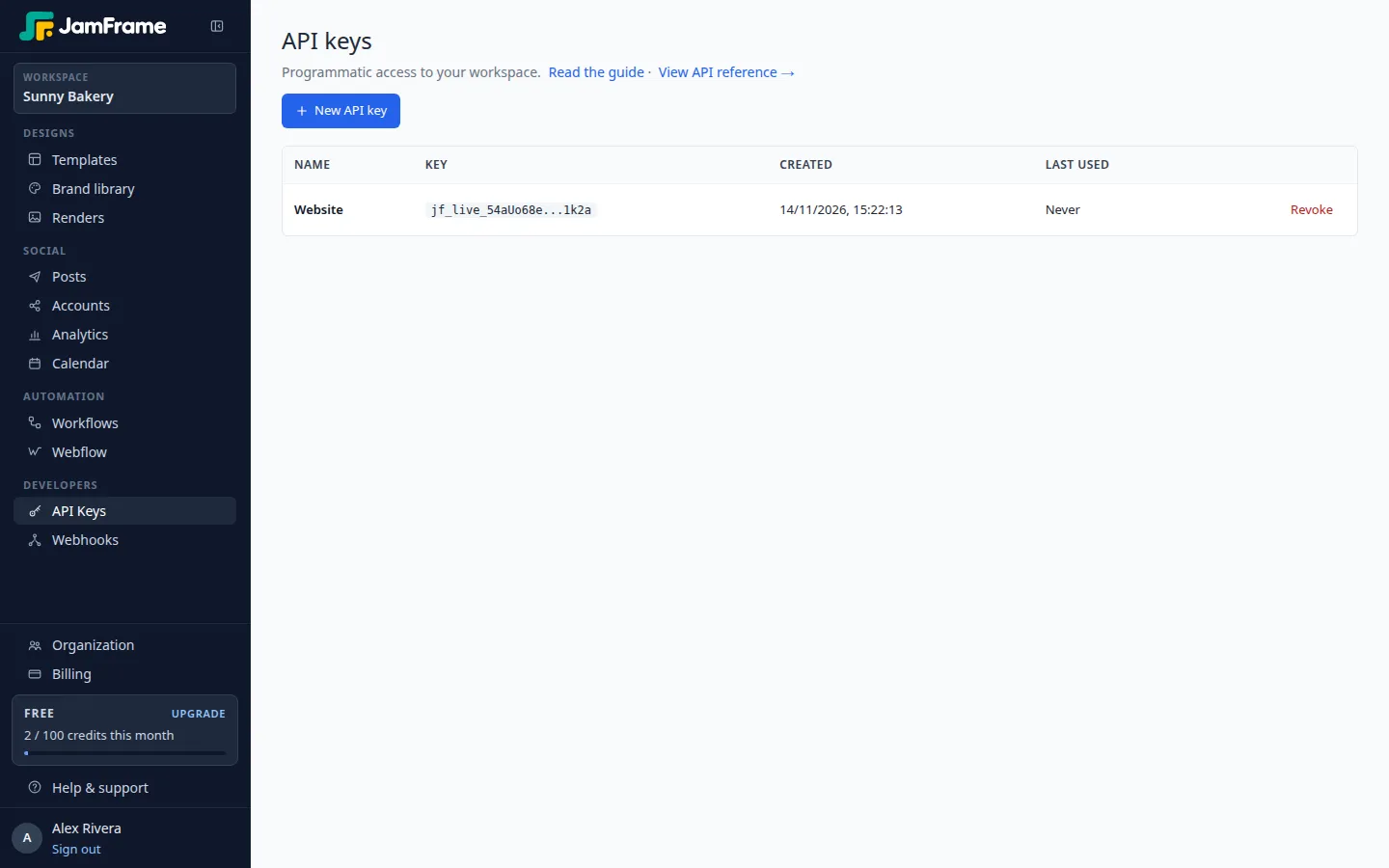
Who a key belongs to
- One workspace. A key works in the workspace that was open when you created it. To use another workspace, switch to it and create a key there.
- One person. A key acts as the person who created it. It can do what an editor can do in that workspace.
- When people leave. If that person leaves the organization, is removed, or loses editor access to the workspace, JamFrame revokes their keys there. The keys stop working at once and stay revoked, even if the person gets access back. Create a new key.
If a key runs something important, such as your website, create it with an account that will stay, so it keeps working when people change jobs. To change who can do what, see Team and roles.
Send the key
Put the key in the Authorization header of every request, after the word Bearer:
curl https://api.jamframe.com/v1/designs \
  -H "Authorization: Bearer $JAMFRAME_API_KEY"
Keep the key in an environment variable, such as JAMFRAME_API_KEY, not in your code. Don’t put it in
the URL.
Test a key
POST /v1/auth checks a key. It needs no body, changes nothing and costs nothing.
curl -X POST https://api.jamframe.com/v1/auth \
  -H "Authorization: Bearer $JAMFRAME_API_KEY"
const res = await fetch("https://api.jamframe.com/v1/auth", {
method: "POST",
headers: { Authorization: `Bearer ${process.env.JAMFRAME_API_KEY}` },
});
console.log(res.status, await res.json());import os
import requests
res = requests.post(
"https://api.jamframe.com/v1/auth",
headers={"Authorization": f"Bearer {os.environ['JAMFRAME_API_KEY']}"},
)
print(res.status_code, res.json())A working key gets 200:
{ "workspaceId": "ws_abc123", "username": "Jane Doe" }workspaceId is the workspace the key works in. username is the name of your organization’s owner, or
their email address if they haven’t set a name.
Keep keys secret
Anyone who has your key can render in your workspace and spend your credits.
- Use the key only in code that runs on a server: your backend, a serverless function, or a script on your own computer.
- Never put it in a web page, a mobile app or a browser extension. People can read anything you send to their device.
- Never commit it to a Git repository, even a private one. Use environment variables or a secrets manager.
- To show a JamFrame image in a web page or an email, use a link with no key in it: a dynamic URL or a signed URL.
- If a key leaks, revoke it at once.
Rotate a key
Change keys from time to time, and whenever someone who knew the key leaves.
- Create a new key.
- Put the new key in your app’s settings and deploy the change.
- On the API Keys page, check that Last used for the old key stops changing.
- Revoke the old key.
Revoke a key
- On the API Keys page, click Revoke next to the key.
- Confirm.
Requests with that key fail at once with 401. You can’t undo this. The key leaves the list.
Revoking a key doesn’t stop the signed URLs it made. To stop those, rotate the signing key: see Signed URLs.
Errors
| Status | error |
Why |
|---|---|---|
| 401 | MISSING_API_KEY |
There’s no Authorization header, or it doesn’t start with Bearer. |
| 401 | INVALID_API_KEY |
The key is wrong or revoked, or the person who made it no longer has editor access. The message says which. |
| 403 | ORG_ON_HOLD |
Your organization is on hold while we review it. Reading still works, but renders and changes don’t. |
| 403 | ORG_SUSPENDED |
Your organization is suspended. Every request is refused. |
For other errors, see Errors.
What next
- Make your first render: Render images and PDFs.
- Learn the base URL, pagination and the other guides: API overview.
Last updated
Still stuck?
Email [email protected] and a real person will reply. Tell us the template you were using and what you expected to happen.