
Share a form that makes files
Turn a template into a public form. Visitors type their details, see a live preview and download the image or PDF, while you control the fields, cost and look.
A form is a public page made from a template. Anyone with the link fills in the fields, sees a live preview, and downloads the finished image or PDF. Visitors don’t need an account. Each download uses your workspace’s credits, so every form has its own credit cap.
Think of an event badge: you design it once, share the form, and each guest makes their own badge with their name and photo.
Create a form
- Open the template’s Integrations, API & Forms dialog: click it in the editor’s top bar, or click Integrations on a template card.
- Click the Forms tab.
- Click Create a form. If the template already has a form, the button says New form.
The new form opens in Edit form. It has one field for each key of the template, and a credit cap of 100 credits. Change what you need and click Save. The form is live as soon as you create it.
A template can have several forms, for example one for each event. The number of forms you can have depends on your plan; see pricing. Next to the button, the tab shows how many forms you use out of your plan’s limit. This counts forms in every workspace of your organization, including forms that are turned off. Delete a form to free a place.
Forms use the template’s last saved version. Save the template in the editor to update its forms.
Manage a form
Each form has a card on the Forms tab.
- The switch next to the title turns the form on or off. A badge shows its status: Live, Off, Expired or Credit cap reached.
- Copy link copies the form’s link, such as
https://app.jamframe.com/f/Q2x5a1RqZmVt0GZ4aWw. - Copy embed copies the code to put the form on your own website. See Embed a form on your website.
- Open opens the form in a new tab.
Under the link, the card shows the form’s renders, the credits it used (out of the cap), repeats, uploads and failed renders. The next line shows the format, the number of fields, the credits each download uses, and when the form was last used. Click Refresh stats for the latest numbers.
At the bottom of the card:
- Edit form opens the form’s settings.
- Reset credit count sets the credits used back to 0, so the cap starts again. It shows once the form has used credits.
- New link makes a new link. The old link and every embed of it stop working at once.
- Delete deletes the form and the images visitors uploaded to it. Its link stops working.
Only people with editor access can see the link and change the form. People with view-only access see the cards and View settings, because anyone who has the link can spend the workspace’s credits.
Edit a form
Edit form has five parts. Click Save when you’re done.
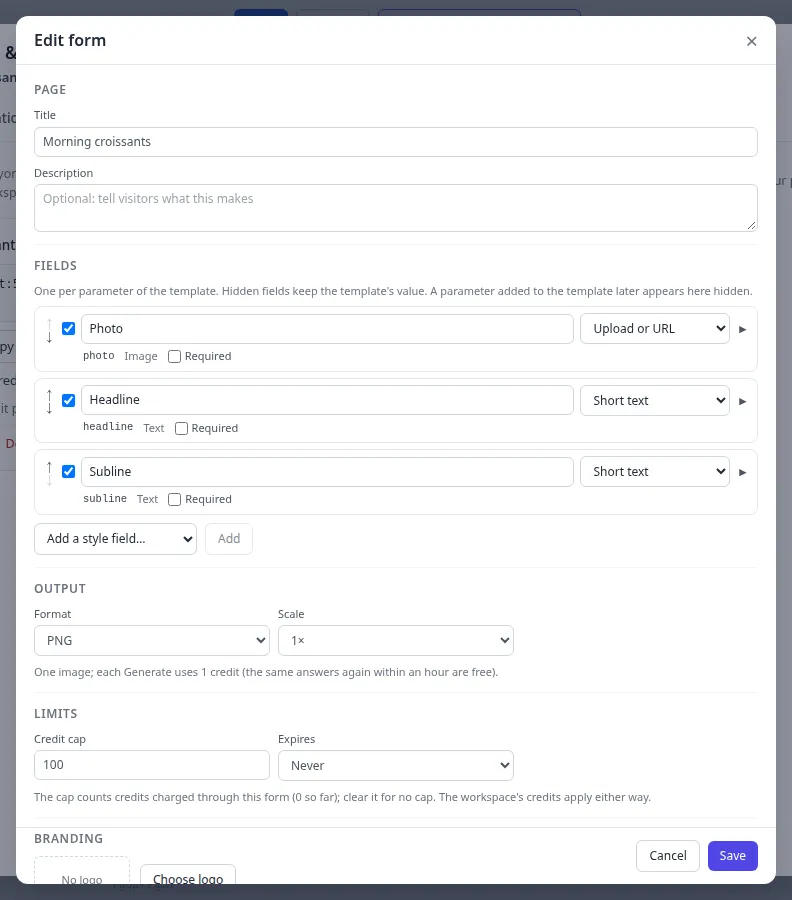
Page
- Title: the heading of the form, up to 120 characters. A new form takes the template’s name.
- Description: optional text under the title, up to 1,000 characters. Tell visitors what the form makes.
Fields
There is one field for each key of the template. For each field you can:
- Show or hide it with the checkbox. A hidden field keeps the template’s own value.
- Change its label, up to 80 characters.
- Choose how visitors fill it in (below).
- Tick Required, so visitors must fill it in.
- Change the order with the ↑ and ↓ buttons.
Click ▸ to see more: Help text (shown under the field, up to 300 characters), Max length for text, and the choices of a dropdown, one per line (up to 50).
| Input | Good for | What visitors see |
|---|---|---|
| Short text | Text keys, variables and QR values | A one-line box |
| Long text | Longer text | A box with several lines |
| Dropdown | Text or colors from a fixed list | A list of your choices. Colors show as swatches. |
| Image upload | Image keys | A button to upload a photo |
| Image or file URL | Image keys | A box for a link to an image |
| Upload or URL | Image keys | Upload a photo, or paste a link instead |
| Colour picker | Shape colors and color style fields | A color picker |
The longest answer is 200 characters for short text, 1,000 for long text and 500 for a QR value, unless you set Max length. It can never be more than 2,000.
Style fields let visitors change a style, not only the content. Pick one under Add a style field… and click Add:
- Text: its color, its alignment (left, center, right) and its case (none, uppercase, lowercase, capitalize).
- Image: its fit (cover or contain).
- Shape: its outline color.
- QR code: its color and its background.
To remove a style field, open it with ▸ and click Remove this style field.
If you add a key to the template later, it shows up in the form as a hidden field, so a live form never changes by itself. A field whose key you removed from the template says Not in the template any more and isn’t shown.
Output
- Format: PNG, JPEG, WebP or PDF. A new form makes a PNG for a one-page template, and one PDF for a template with several pages.
- Size: Original, or another size you made with Smart Resize. This list shows only when the template has other sizes.
- Scale: 1× or 2× (retina). Not for PDFs.
- Pages: for templates with several pages, tick the pages to make.
The line under these settings says what one download costs: 1 credit per page. The same answers again within an hour are free.
Limits
- Credit cap: the most credits this form can use. A new form starts at 100. Leave it empty for no cap. Your workspace’s own credits still apply.
- Expires: In 1 day, In 7 days, In 30 days, In 90 days, In 1 year or Never, counted from when you save.
Branding
- Choose logo picks an image from your brand library. It shows at the top of the form. Click Remove to take it off.
- Accent colour sets the color of the buttons. Click Reset to go back to the default.
Embed a form on your website
Copy embed gives you an <iframe> like this one. Paste it into your page’s HTML:
<iframe src="https://app.jamframe.com/f/Q2x5a1RqZmVt0GZ4aWw?embed=1" title="Event badge" width="100%" height="900"
  style="border:0;max-width:960px" loading="lazy" allow="clipboard-write"></iframe>
The form fits any width. Its height changes as visitors fill it in, so the form tells your page its
height with a postMessage event of type template-form:height. To make the frame follow it, give the
<iframe> an id and add this script to your page:
<script>
  window.addEventListener("message", (event) => {
    if (event.data?.type === "template-form:height") {
      document.querySelector("#badge-form").style.height = `${event.data.height}px`;
    }
  });
</script>
What visitors see
The form’s page is at /f/ followed by the form’s id.
- At the top: your logo, the title and the description.
- The fields on one side and a live preview of the design on the other. The preview changes as the visitor types, and it costs nothing.
- A short check that the visitor isn’t a robot.
- A button named after the format, such as Generate PNG or Generate PDF.
After a few seconds the file shows under the button, with a button such as Download PNG, Download Page 2 or Download PDF.
At the bottom, a small “Made with JamFrame” line links to our website. You can’t hide it.
When the form is turned off or has expired, visitors see “This form is closed”. When the credit cap is used up, the form says “This form has reached its limit.”
Uploads
An image field that allows uploads takes PNG, JPEG, WebP or GIF files up to 10 MB, at most 10,000 pixels on a side and 40 megapixels. SVG files aren’t accepted. Uploaded images are deleted after 24 hours. They never appear in your brand library.
Credits, limits and safety
- Credits. Each Generate uses 1 render credit per page made, from your workspace. Visitors pay nothing.
- Repeats are free. The same answers on the same version of the template within an hour give back the same files at no cost. The card counts these as repeats.
- Failed renders are free.
- No AI. AI layers show their saved content on a form.
- Files are kept for 7 days. After that, the files are deleted and the download links stop working. Visitors who need the file again fill in the form again. See How long files last.
- Bot check. Every Generate, and the first upload of a visit, needs the robot check.
- Rate limits. Renders and uploads have limits per minute, for each visitor, form and workspace. See Public links and forms.
Every form render is listed on the Renders page as Form. See Renders.
What next
- Try the template first: Test render.
- Make images from a link instead: Dynamic URLs.
- Choose which layers become fields: Choose what changes.
Last updated
Still stuck?
Email [email protected] and a real person will reply. Tell us the template you were using and what you expected to happen.