Right-to-left text (RTL and LTR)
Use Hebrew, Arabic and other right-to-left languages in a template. Pick a font that has the letters, set a text layer's Direction, and change it in a render.
Hebrew, Arabic and Persian read from right to left (RTL). English reads from left to right (LTR). JamFrame shows both, even in the same template. This page shows how to set up right-to-left text, step by step.
How JamFrame picks the direction
Every text layer has a Direction setting. It starts on auto (from the text), and most of the time you can leave it there.
With auto, JamFrame looks at the first letter of each line. Numbers, spaces and signs such as ₪, % or !
don’t count.
| The first letter is | The line reads |
|---|---|
| Hebrew or Arabic | Right to left |
| English, or another Latin letter | Left to right |
There are no letters, as in a price like ₪9.90 |
Left to right |
A new line starts when you press Enter. So one text layer can hold a Hebrew line and an English line, and each one reads the right way.
The direction decides the order of the words, numbers and punctuation in a line. For example, in “מבצע סוף שבוע!” the ”!” is at the end of the sentence, so it shows on the left, where a Hebrew reader expects it.
Step 1: Pick a font that has the letters
Not every font has Hebrew or Arabic letters. The Fonts tab can show only the fonts that do.
- Select the text layer.
- Click the Fonts tab on the left.
- Under the category buttons, open the menu that says All languages, and choose your language, such as Hebrew or Arabic. The number after each language is how many fonts have it.
- The list now shows only those fonts, and each preview shows sample text in your language. Click a font to use it.
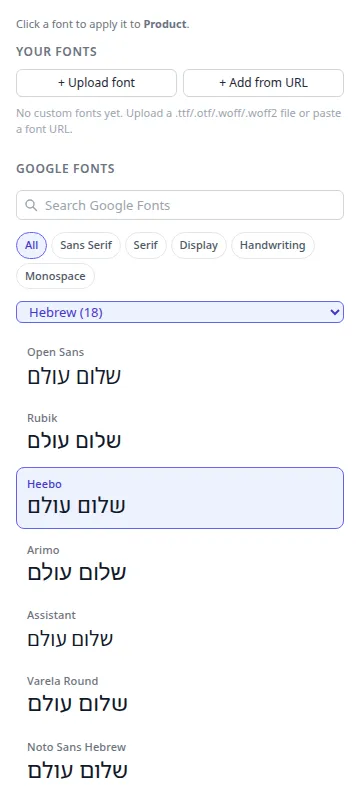
The language menu works on Google Fonts. You can also upload your own font file that has the letters. See Your own fonts.
Step 2: Type the text and align it
- Click the Text tab and click Add a heading, Add a subheading or Add body text. Or select a text layer that is already there.
- Double-click the text on the canvas, and type or paste your Hebrew or Arabic text. Click outside the text when you’re done.
- In the toolbar above the canvas, click Align right (the third alignment button).
Step 3: Set the direction when auto gets it wrong
Auto looks only at the first letter. A Hebrew line that starts with an English word or a brand name, such as “FreshCo מיץ תפוזים 1 ליטר”, therefore reads left to right. The brand name, which should come first, ends up last, on the left.
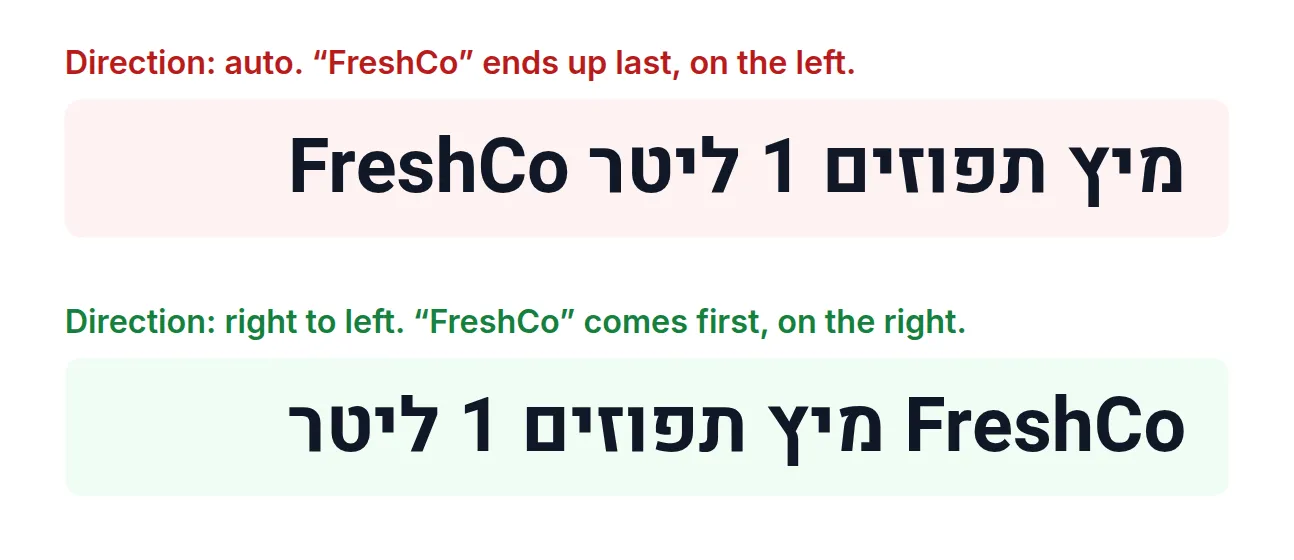
To fix it:
- Select the text layer on the canvas or in the Layers panel.
- Element Properties opens on the left. On the General tab, scroll down to Typography.
- Open the Direction menu and choose Direction: right to left.
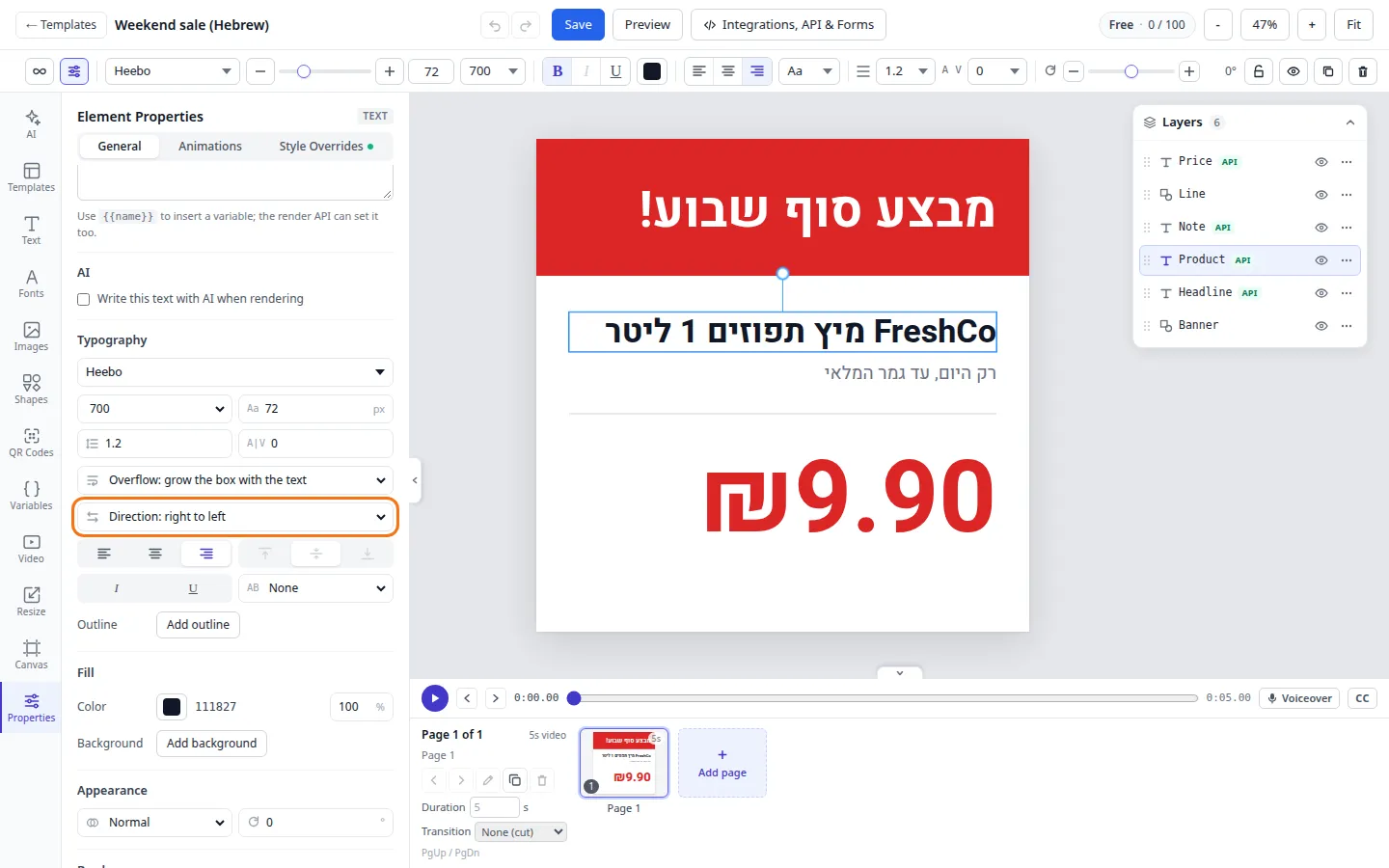
The setting covers every line of the layer. The other choices are:
- Direction: left to right, the other way round: for an English line that starts with a Hebrew or Arabic word.
- Direction: auto (from the text) goes back to picking the direction from each line’s first letter.
Renders draw text the same way as the editor, so what you see on the canvas is what you get. To check it without the selection outlines, click Preview in the top bar.
Direction in renders
A layer keeps its Direction when a render changes its text. With auto, the new text gets its direction from its own first letter. So one template can take English text in one render and Hebrew text in the next.
Alignment doesn’t change by itself. If a template is aligned left and a render sends Hebrew text, the text still starts at the left edge of the box. Send the alignment too.
To change the direction in a render, add .direction to the layer’s key, with auto, rtl (right to left)
or ltr (left to right). In this example the layer’s key is product:
{
  "templateId": "clx8m2k3p0002abcd1234efgh",
  "modifications": {
    "product": "FreshCo מיץ תפוזים 1 ליטר",
    "product.direction": "rtl",
    "product.align": "right"
  }
}
The same keys work in signed URLs and dynamic URLs.
A layer gets a key when you make it a dynamic field: see Dynamic fields. In the
editor, the Style Overrides tab of Element Properties lists direction and every other key you can
send for the selected layer. All text keys are in Modification keys.
Common problems
| Problem | Fix |
|---|---|
| The ”!” or ”.” of a Hebrew line is on the right. | The line reads left to right, because its first letter is English. Set Direction: right to left. |
| Hebrew and English words in one line are in the wrong order. | Set Direction: right to left for a Hebrew line, or Direction: left to right for an English line. |
| Hebrew text sits on the left side of its box. | Direction doesn’t move text. Click Align right. |
| The letters don’t look like the font you picked. | The font has no letters for your language, so another font fills in. Pick a font from the language menu in the Fonts tab. |
What next
- More text settings and fonts: Text and fonts.
- Let a render change the text: Dynamic fields.
- Try your template with real data: Test render.
Last updated
Still stuck?
Email [email protected] and a real person will reply. Tell us the template you were using and what you expected to happen.