
Use JamFrame in Zapier
The JamFrame app for Zapier is in private beta. How to get access, connect it with an API key, render a template in a Zap, and what the other actions and triggers do.
Zapier joins your apps together. Each automation is a Zap: when something happens in one app (the trigger), Zapier does something in another (the action). The JamFrame app for Zapier lets a Zap render your templates, and lets things that happen in JamFrame start a Zap.
What you need
- A Zapier account. The free plan works.
- An invite link from us (see above).
- A JamFrame API key. See API keys.
Get access
- Sign in to Zapier.
- Open the invite link we sent you and accept the invite.
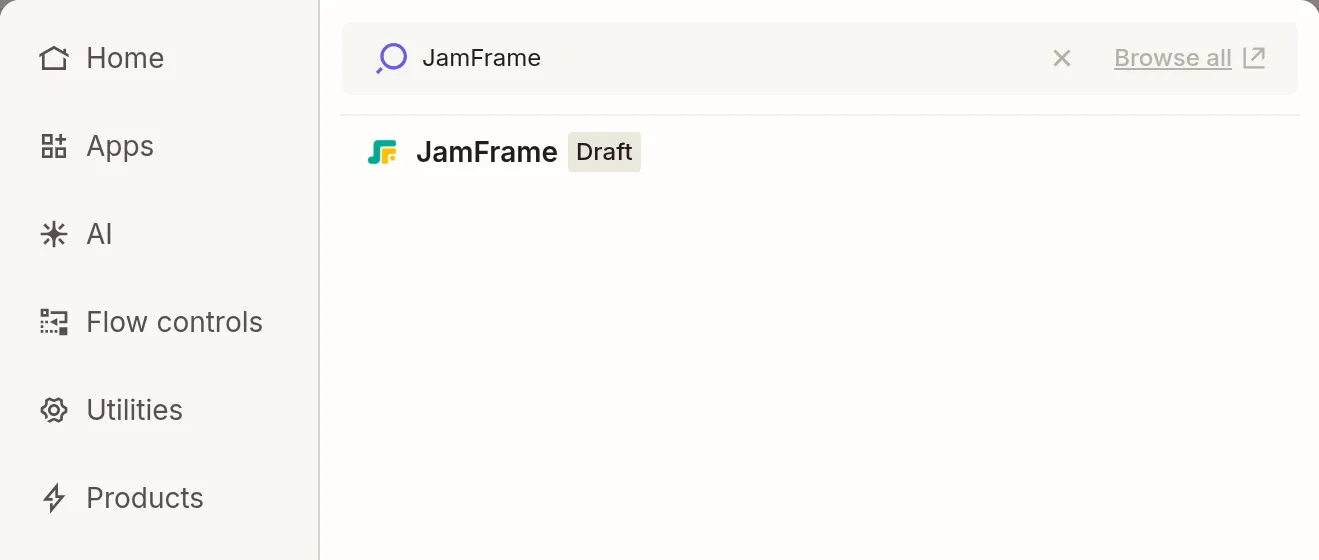
JamFrame now shows up when you search for an app in the Zap editor. During the beta it may carry a label such as Draft or Beta next to its name.
Connect your JamFrame account
The app signs in to JamFrame with an API key. A key works in one workspace, so everything your Zaps do happens in that workspace, and renders use that workspace’s credits.
-
In JamFrame, in the sidebar, under Developers, click API Keys. Create a key and copy it.
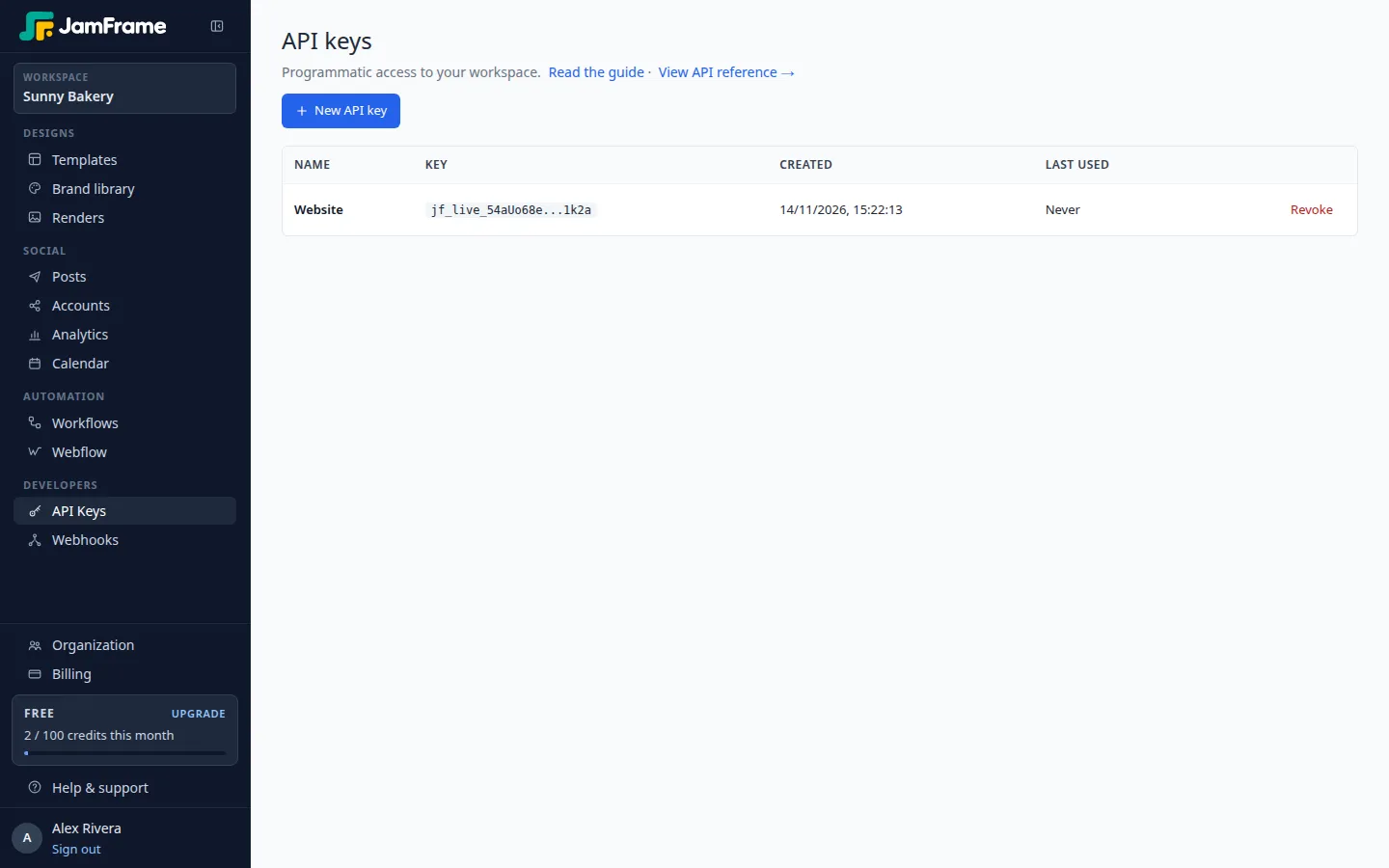
The API keys page in JamFrame. -
In Zapier, add a JamFrame step to a Zap and choose an event.
-
Under Account, click Sign in (or Change, then Connect a new account).
-
In the window that opens, paste your key in API key and click Connect.
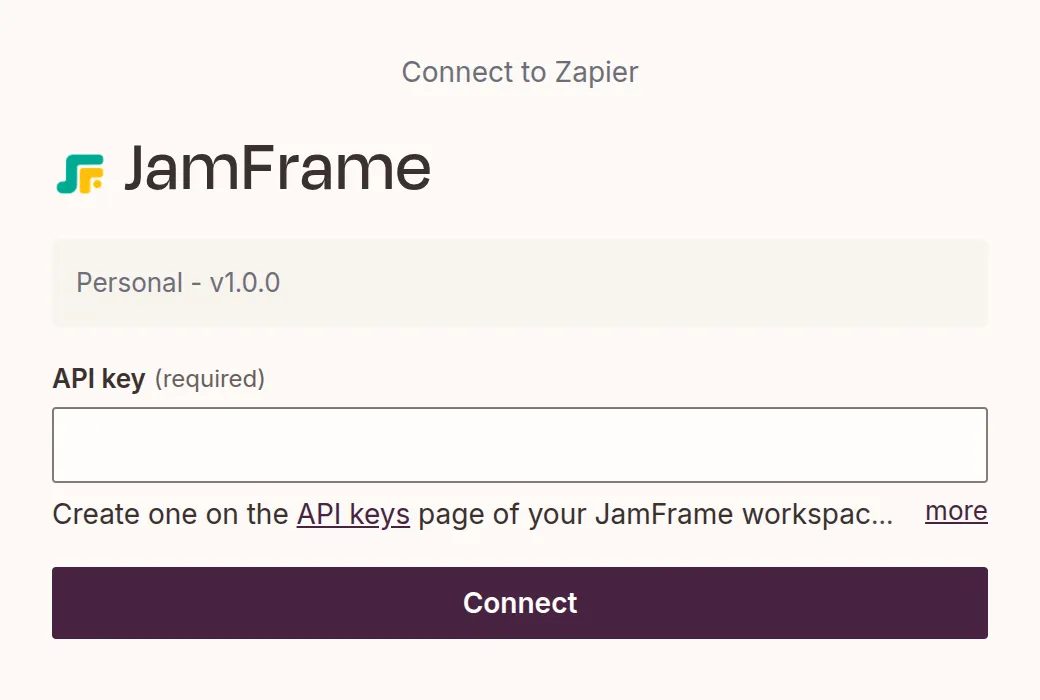
The connection asks for one thing: your API key.
Zapier checks the key, and the connection is named after your workspace. To use another workspace, create a key there and connect it as another account.
Render a template
Render Template is the action most Zaps use. It fills a template with data from earlier steps and gives you the file.
-
Add a step and choose JamFrame, then Render Template as the action event.
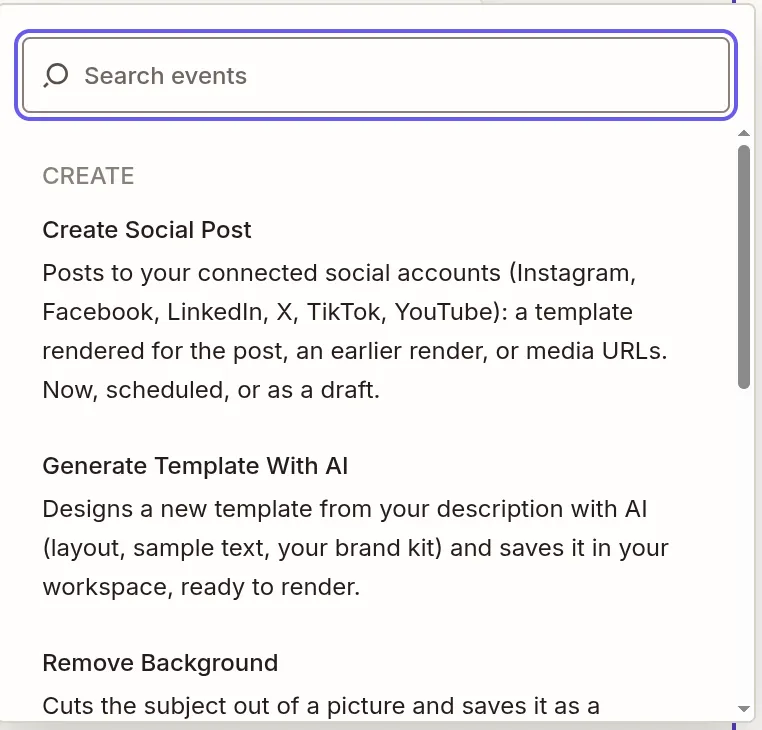
JamFrame's actions, each with a short description. -
Choose your account, then click Continue.
-
Open Template and pick a template. Your own templates come first. Templates from the JamFrame library are labelled Library:. Type to search the list.
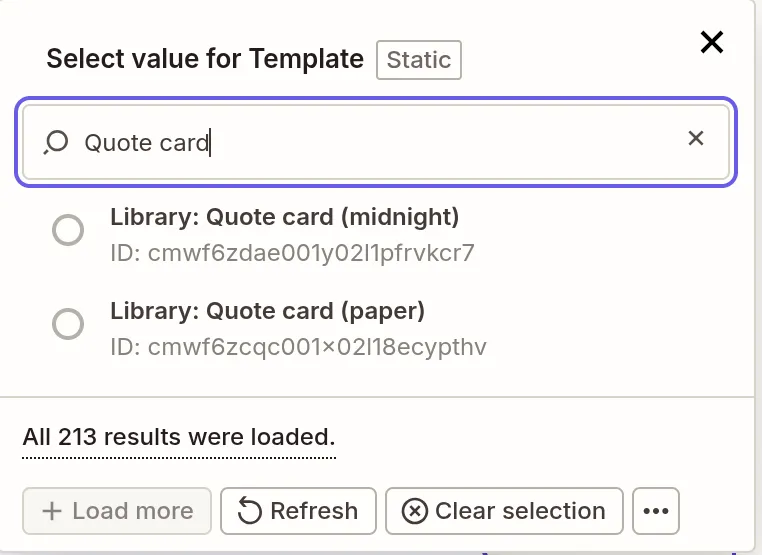
Pick one of your templates or a library template. -
Zapier now shows one field for each of the template’s fields, named like them (here quote, author and role). Type text, or click + to insert data from an earlier step. Fields you leave blank keep the template’s own text.
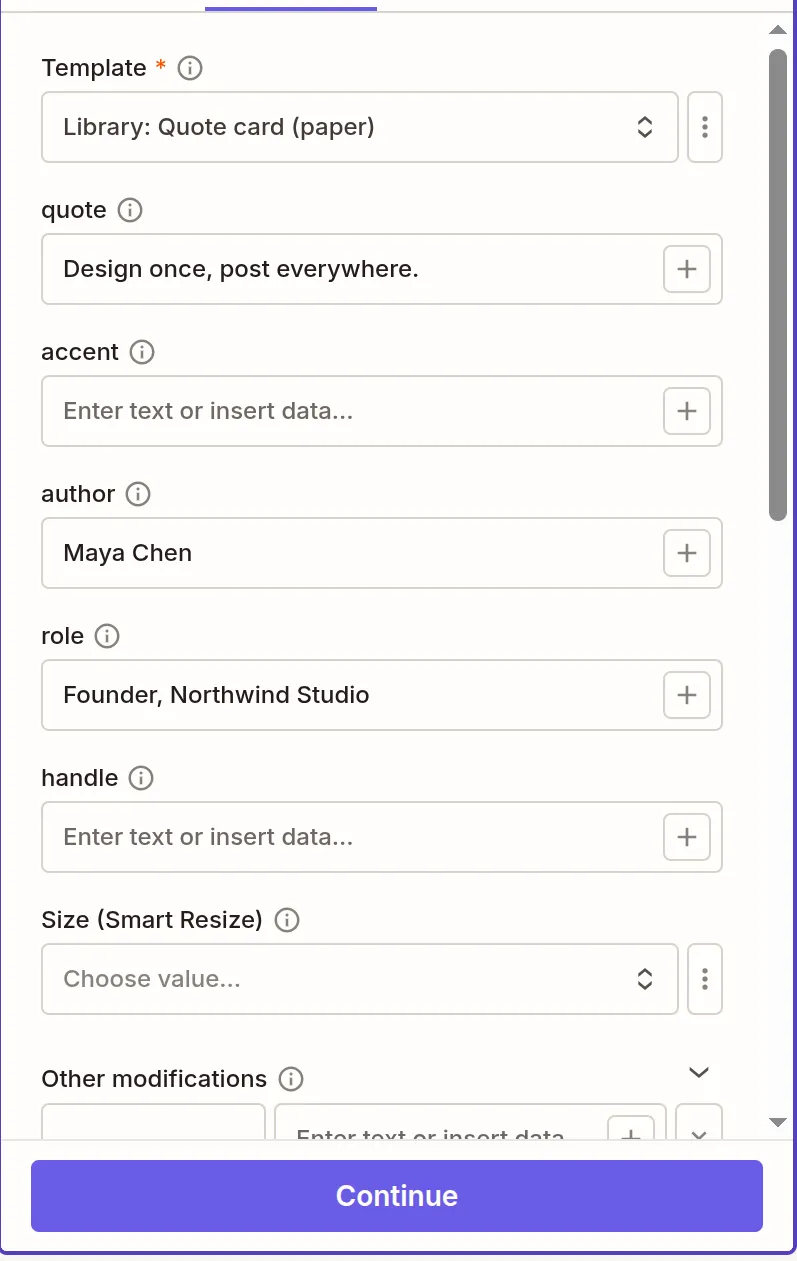
Each field of the template becomes a field in Zapier. -
Click Continue, then Test step. JamFrame renders the template, and Zapier shows what came back: Status is
succeededand Url is the link to the file.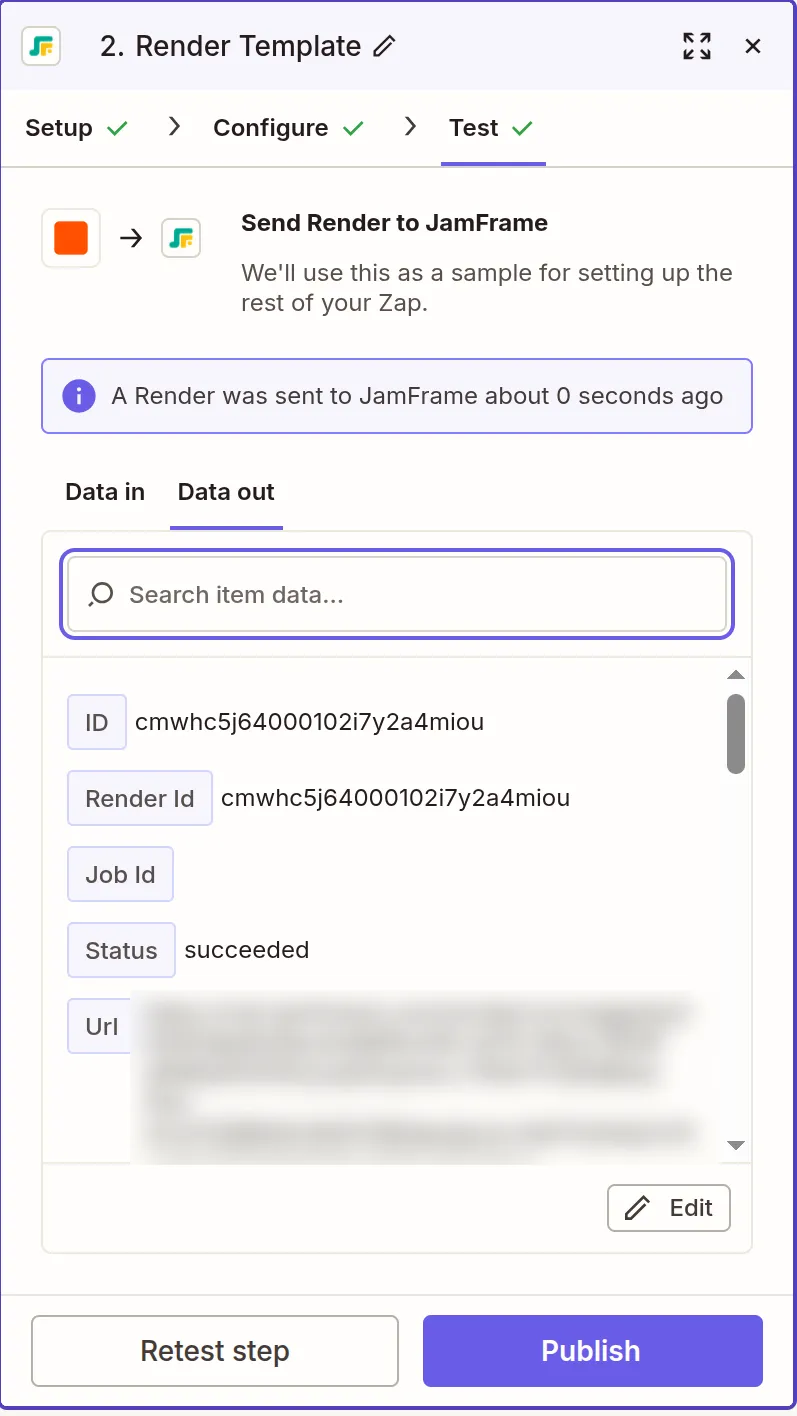
A test renders for real and uses credits like any other render. -
Add the next step and insert Url where you need the file, for example as an attachment in Gmail or an image in Slack. Then publish the Zap.
Render Template fields
| Field | What it does |
|---|---|
| Template | The template to render: yours, or one from the template library. Library templates use your credits like your own. |
| The template’s fields | One field for each field of the template, such as a title, a photo URL or a price. |
| Size (Smart Resize) | Renders every page at another size: a size saved on the template, a size name, or a custom size such as 1080x1920. Leave blank for the template’s own size. |
| Other modifications | Extra key and value pairs sent as they are, for example page2@title for one carousel page or title.color for a style. They override the fields above. |
| Format | PNG, JPEG, WebP, PDF or MP4 video. Images give one file per page (a carousel), a PDF one file with every page, and an MP4 one video with each page as a scene. |
| Several sizes | Up to 10 sizes in one step, for example original, story, 1200x630. Urls lists every file. |
| Pages | The pages to render, for example 1, 3-4. Leave blank for all pages. |
| Scale | 1x, 2x or 3x the template’s size, for sharper images. |
| Quality (JPEG/WebP) | From 1 to 100. |
| Subtitle file (MP4) | Also saves the video’s subtitles as an SRT or WebVTT file. |
| Run as a render job | For large images or PDFs that could take longer than Zapier’s 30 seconds. MP4 videos always run as a job. |
| Wait for the result | For render jobs: the Zap pauses until the files are ready, then goes on. Off: the step returns at once, and the Render Finished trigger gives you the files later. |
Credits: 1 per image or PDF page, 1 per second of video. Videos take a few minutes to render, so leave Wait for the result on if the next step needs the file.
Other actions
| Action | What it does |
|---|---|
| Generate Template With AI | Designs a new template from your description and saves it in your workspace, ready to render. |
| Run Workflow | Starts a run of one of your JamFrame workflows, with rows from earlier steps if you like. The run goes on in the background. |
| Remove Background | Cuts the subject out of a picture and saves it as a transparent PNG in your brand library. |
| Transcribe Audio | Turns the speech in an audio file or a video into text and subtitles (SRT and WebVTT). |
| Create Social Post | Posts to a social account connected in JamFrame, now or later, or saves it as a draft. |
Triggers
Triggers start a Zap when something happens in your JamFrame workspace. Instant triggers start it within seconds. New Render is a Polling trigger: Zapier checks for new renders every few minutes.
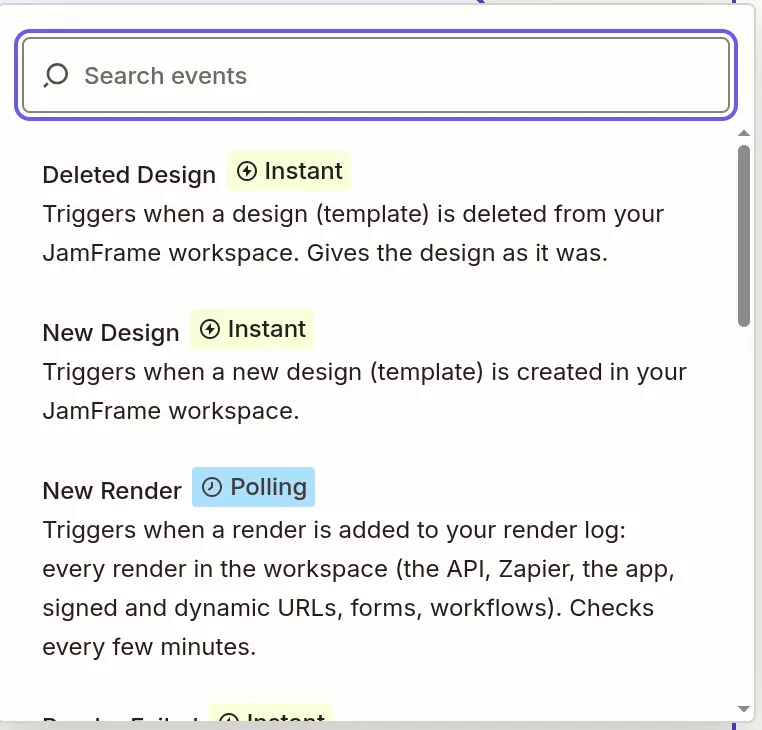
| Trigger | Starts a Zap when |
|---|---|
| New Design | a template is created |
| Updated Design | a template is saved |
| Deleted Design | a template is deleted |
| Render Finished | a render job is done: an MP4 video, or a render sent as a job |
| Render Failed | a render job fails (no credits are charged for it) |
| New Render | any render is added to your render log |
| Workflow Run Finished | a JamFrame workflow run ends without failing. Gives each row’s files. |
| Workflow Run Failed | a JamFrame workflow run fails |
| Social Post Published | a post goes live on one of its accounts. A post to three accounts starts three Zaps. |
| Social Post Failed | a post fails for good on one of its accounts, after retries |
A first Zap
- Trigger: Google Sheets, New Spreadsheet Row.
- Action: JamFrame, Render Template. Pick a template, then match each of its fields to a column of the row.
- Test the step. Zapier shows the link to the finished image.
- Add a step that uses the link, for example Gmail or Slack, and turn the Zap on.
Need help?
Email [email protected] with what you tried and what Zapier showed. During the beta, we’d also like to hear what works and what doesn’t.
Last updated
Still stuck?
Email [email protected] and a real person will reply. Tell us the template you were using and what you expected to happen.