
Use JamFrame in n8n
Install the verified JamFrame node in n8n Cloud or self-hosted n8n, connect it with an API key, render templates, run workflows, and start n8n workflows from JamFrame events.
n8n is a tool for building automations. You join apps together with nodes, and n8n runs the steps for you. JamFrame has two n8n nodes:
- JamFrame renders your templates, designs templates with AI, removes backgrounds, and runs your JamFrame workflows.
- JamFrame Trigger starts an n8n workflow when something happens in JamFrame, such as a finished render.
Both come in one package, n8n-nodes-jamframe, on npm. Its
code is open source on GitHub.
Both n8n and JamFrame have workflows. On this page, an “n8n workflow” is one you build in n8n. A “JamFrame workflow” is one you build on the Workflows page in JamFrame.
What you need
- n8n Cloud or a self-hosted n8n. To install the node, you must be the owner or an admin of your n8n.
- A JamFrame API key. See Connect your JamFrame account.
- For the trigger only: an n8n that the internet can reach over
https. n8n Cloud always is. See n8n must be reachable from the internet.
Install the node
n8n has verified the JamFrame node, so you can add it from the nodes panel. This works in n8n Cloud and in self-hosted n8n.
-
Open a workflow in n8n. Click +, or press N, to open the nodes panel.
-
Search for
JamFrame, then click JamFrame in the results. -
Click Install node.
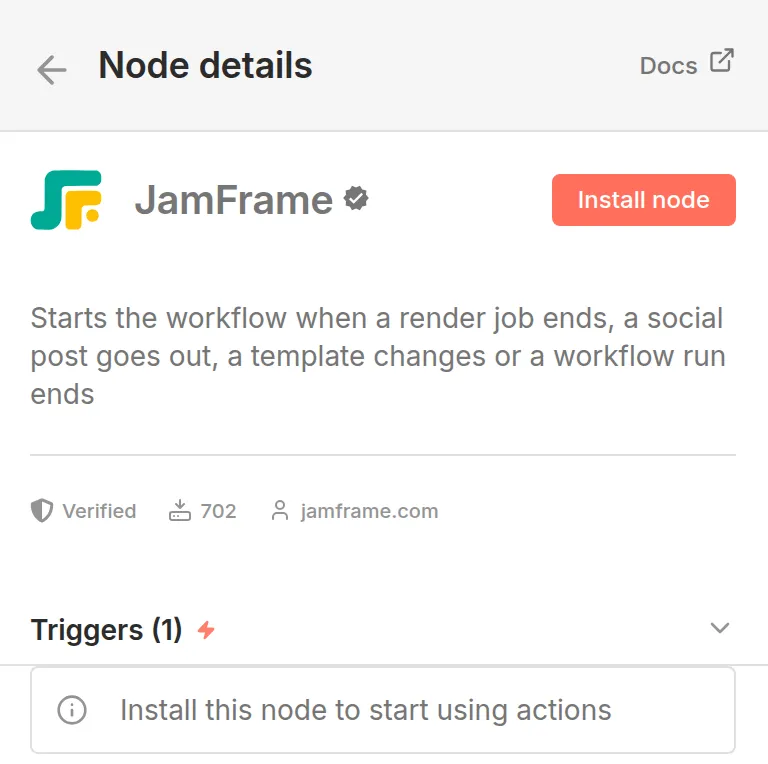
A verified node installs from the nodes panel.
n8n adds the JamFrame and JamFrame Trigger nodes. Only the owner or an admin can install them. After that, everyone in your n8n can use them.
Install by package name
On self-hosted n8n, you can also install the package by its name:
-
In n8n, open Settings, then click Community nodes.
-
Click Install a community node. If you already have community nodes, click Install.
-
In npm Package Name, type
n8n-nodes-jamframe. -
Tick I understand the risks of installing unverified code from a public source.
-
Click Install.
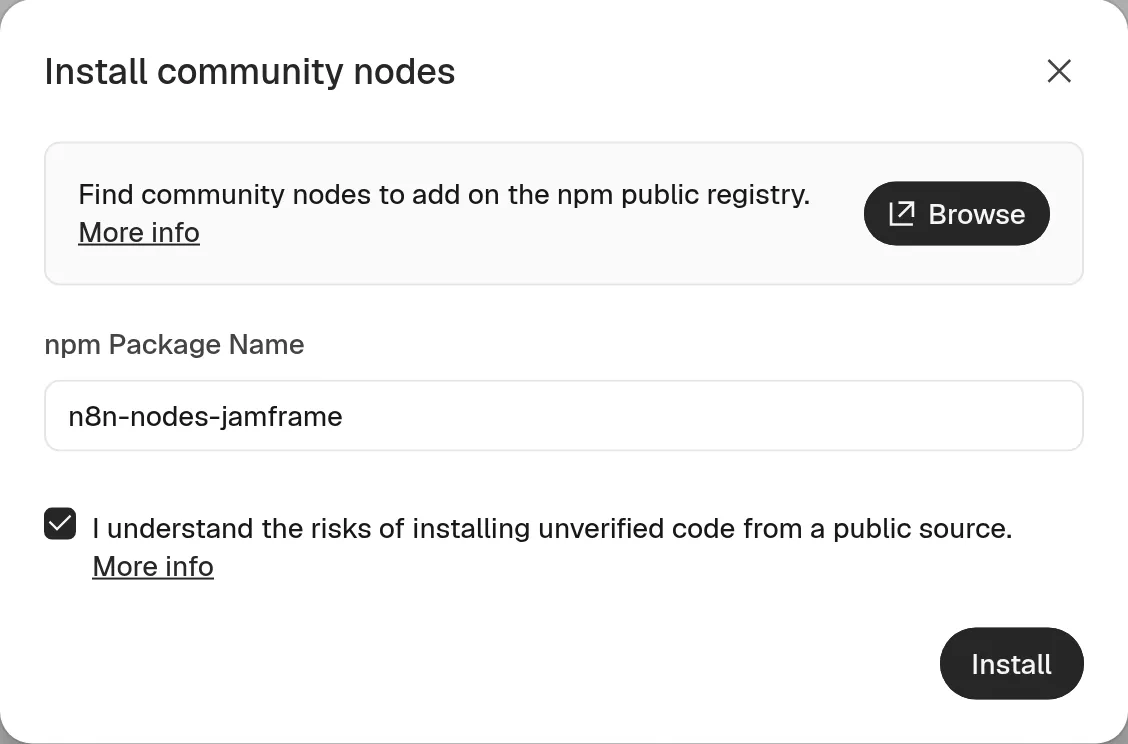
Install the package from Settings → Community nodes.
To use the nodes, search for “JamFrame” in the nodes panel.
If you can’t install from Settings, install the package by hand. n8n’s guide shows how: Manual installation.
Connect your JamFrame account
The nodes sign in to JamFrame with an API key. A key works in one workspace, so everything the nodes do happens in that workspace.
-
In JamFrame, in the sidebar, under Developers, click API Keys. Create a key and copy it. See API keys.
-
In n8n, add a JamFrame node to a workflow.
-
Open the Credential list and click Create new credential.
-
In API Key, paste your key.
-
Leave Base URL as
https://api.jamframe.com.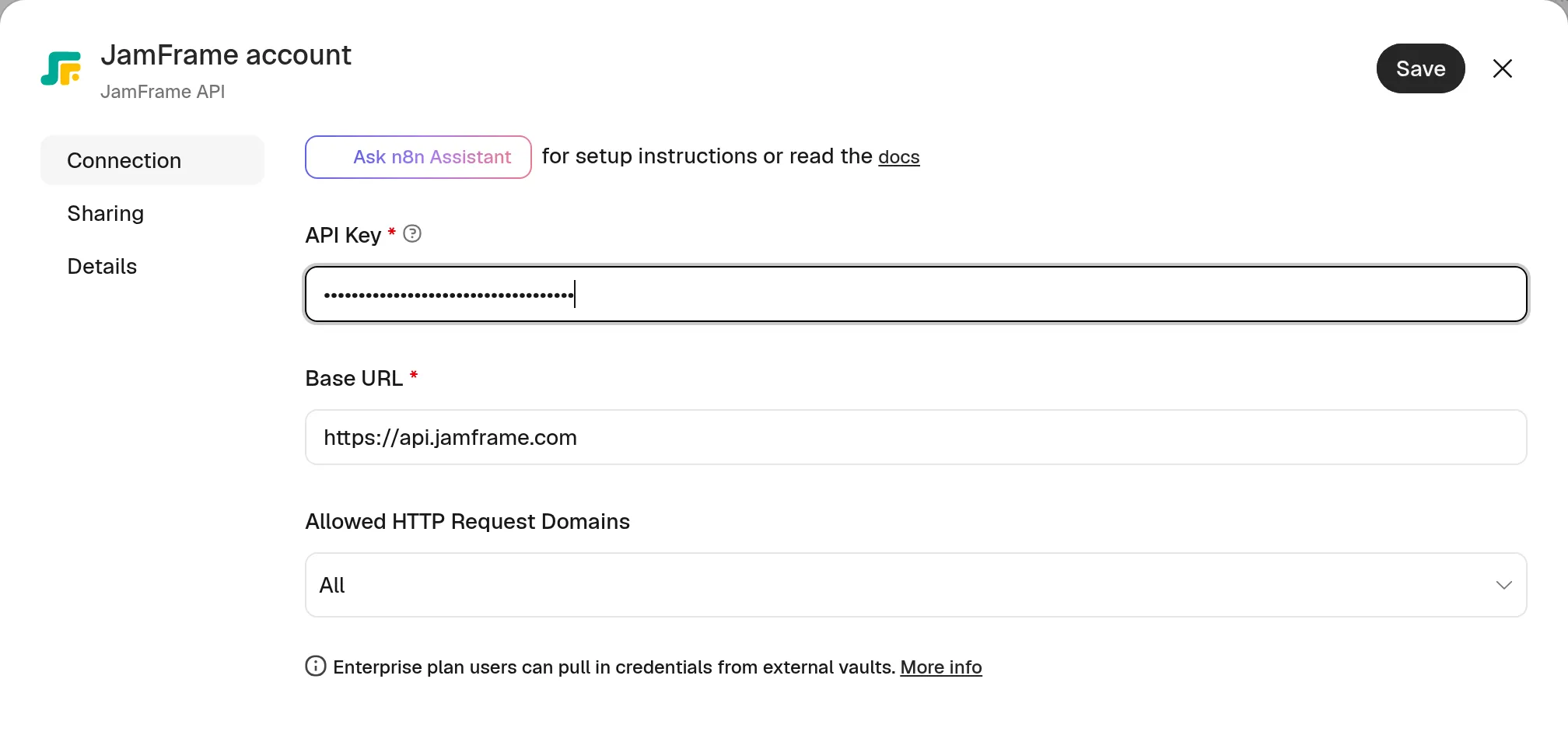
The credential needs your API key. Base URL is already filled in. -
Click Save. n8n checks the key and shows Connection tested successfully.
The JamFrame Trigger node uses the same credential.
Render a template
-
Add a JamFrame node and choose the action Render a template. In the node, Resource is Render and Operation is Render Template.
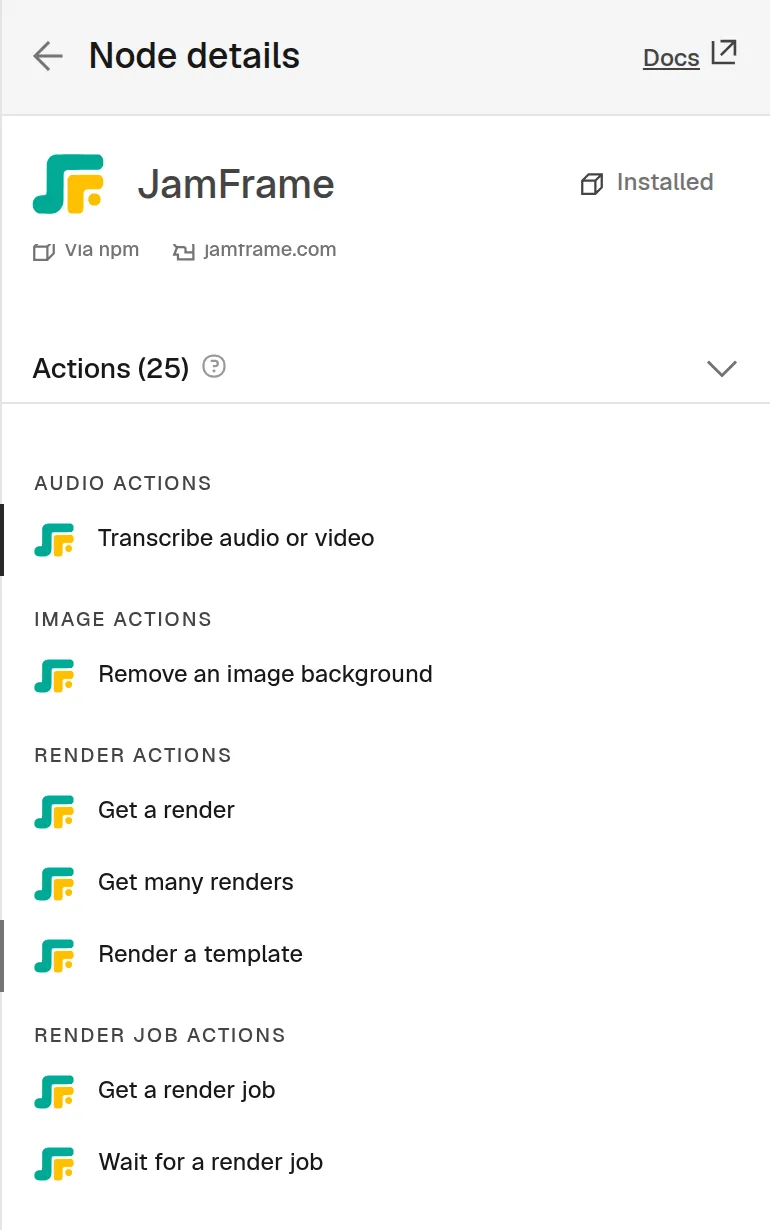
Search for JamFrame in the nodes panel, then pick Render a template. -
In Template, pick a template. Your workspace’s templates come first. After them come the ready-made library templates, whose names start with “Library:”. Type to search by name. To use a template id instead, for example from an earlier node, switch to By ID.
-
Under Parameters, fill in the values. Each parameter of the template has its own field. A field you leave empty keeps the template’s own content. Image fields take a public link to an image.
-
Choose a Format: PNG, JPEG, WebP, PDF or MP4 Video. For a video, see Render a video.
-
Click Execute step.
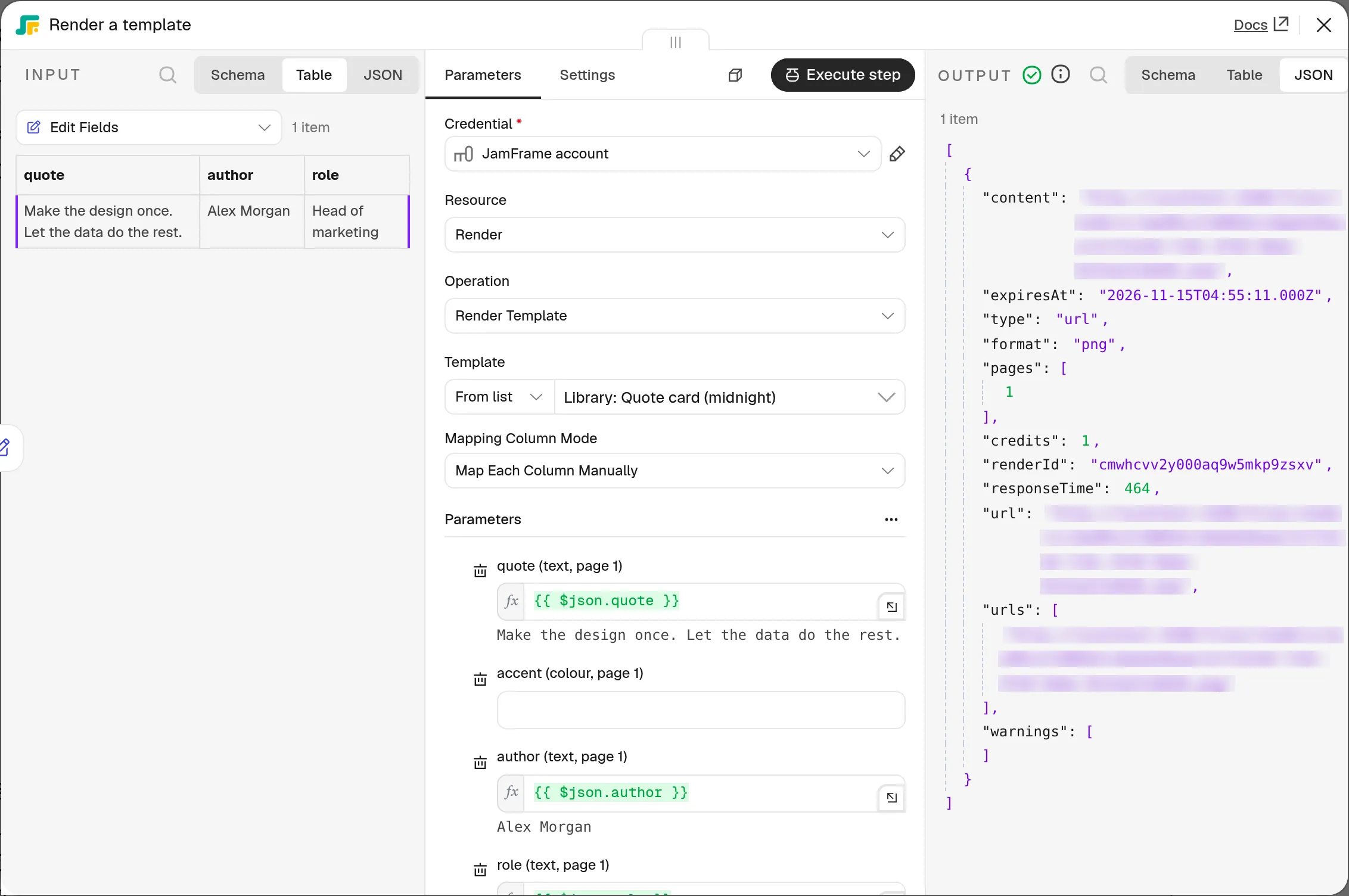
The node outputs one item with the render’s result. These fields are the most useful:
| Field | What it is |
|---|---|
url |
A link to the first file. |
urls |
Links to every file: one per page for images, or one for a PDF or a video. |
renderId |
The render’s id. Use it to get new links later. |
credits |
The render credits this render used. |
warnings |
Problems that didn’t stop the render, such as a key that matched no layer. |
The other fields are the same as in an API render. See Render images, PDFs and videos.
The file links work for 5 minutes, so use them in the next steps right away. To keep the files, turn on
Download Files under Options: the node then passes each file on as binary data. JamFrame keeps the files
for 8 days. To get new links in that time, use Render → Get with the renderId.
Each image, or each page of a PDF, uses one render credit, like any render. A video uses one render credit per second. Library templates are charged to your workspace too. See Credits.
Fill the fields from earlier nodes
Drag fields from the node’s input into the parameter fields. Or set Mapping Column Mode to
Map Automatically. Then each parameter takes the input field with the same name, such as title or
photo.
Change more than the parameters
Under Additional Modifications, add any modification key with its value. These win over the fields above. For example:
page2@titlechangestitleon page 2 only.title.colorortitle.fontSizechanges a style.badge.hiddenset totruehides thebadgelayer.
See Modification keys for every key you can use.
More settings
| Setting | What it does |
|---|---|
| Resize | Template Size renders at the template’s own size. One Size renders every page at another size: a size saved on the template, a size name such as story, or a custom size such as 1080x1920. Several Sizes renders up to 10 sizes in one step, for 1 credit per page per size. See Smart Resize. |
| Run as Job | Renders in the background. See below. Videos always render this way. |
| Options → Pages | Which pages to render, such as 1, 3-4. Empty means all pages. |
| Options → Scale | 1×, 2× or 3× the template’s size, for images. |
| Options → Quality | Compression for JPEG and WebP, from 1 to 100. |
| Options → Download Files | Also passes each file on as binary data, named data, data_1, and so on. |
Render in the background
Turn on Run as Job to queue the render. What happens next depends on Wait for Completion:
- On (the default): the node waits until the files are ready, then outputs them as above. It stops waiting after Timeout (Seconds) under Options (600 by default), but the job keeps running.
- Off: the node outputs the job’s
jobIdandstatusat once. Get the files later with Render Job → Get or Wait. Or let a JamFrame Trigger with the Render Completed event pick them up.
Several Sizes can’t run as a job. A job that fails costs nothing. See Async renders.
Render a video
Choose MP4 Video as the Format to make one video from the template. Each page becomes a scene. A scene lasts as long as its page is set to in the editor (5 seconds by default). It plays the page’s animations and video layers, with the template’s audio track and subtitles.
- Cost: 1 render credit per second of the finished video. A video that fails costs nothing.
- Length: up to 30 seconds on Free, 1 minute on Starter and Plus, and 3 minutes on Professional.
- Waiting: a video always renders as a job, even with Run as Job off. With Wait for Completion on, the node waits until the video is ready. A long video can take a few minutes. If it takes longer than Timeout (Seconds) under Options (600 by default), the step fails, but the video keeps rendering. The error gives the job id: get the video later with Render Job → Wait.
- Output:
urlis the video, anddurationis its length in seconds. - Subtitles: Subtitles File under Options also saves the video’s subtitles as an SRT or
WebVTT file. Its link is in
subtitles. - Sizes: One Size works with video. Several Sizes doesn’t.
To get a template made for video, use Template → Generate with AI and turn on Video under Options.
Everything the JamFrame node does
Pick the Resource, then the Operation:
| Resource | Operation | What it does | Cost |
|---|---|---|---|
| Render | Render Template | Makes images, a PDF or an MP4 video from a template. See Render a template. | 1 render credit per image or PDF page, or per second of video |
| Render | Get, Get Many | Reads your render log, newest first, with new file links. It lists renders made anywhere, not only in n8n. Get Many can filter by Status and Template ID. | Free |
| Render Job | Get, Wait | Checks a background render by its Job ID. Wait waits until the job ends, and fails the step if the job failed. | Free |
| Template | Get, Get Many | Reads one template, with its pages, parameters and saved sizes, or lists templates. For Get Many, Source is Workspace or Template Library. | Free |
| Template | Generate with AI | Designs a new template from your Prompt and saves it in your workspace. The output’s templateId is ready to render. Video under Options makes an animated template for MP4. See Generate a template with AI. |
15–30 AI credits |
| Image | Remove Background | Cuts the subject out onto a transparent PNG, saves it in your brand library, and outputs its url. Input is a URL or a Binary File from an earlier node. See Background removal. |
1 AI credit (rarely 8) |
| Audio | Transcribe | Turns the speech in an audio file or a video into subtitles: cues, srt, vtt and the full text. Input is a URL or a Binary File. |
1 AI credit per minute |
| Workflow | Get, Get Many | Reads your JamFrame workflows, including what stops one from running. | Free |
| Workflow | Run | Starts a run of a JamFrame workflow now. With Wait for Completion on, it outputs each row’s result. Under Options, Max Rows makes a short test run, and Rows (JSON) sends the rows to a workflow whose source is Webhook payload. See Run workflows from the API. | Render credits for each row |
| Workflow Run | Get, Get Many, Cancel | Reads the runs of a JamFrame workflow, or cancels one. | Free |
Start an n8n workflow from JamFrame
The JamFrame Trigger node starts an n8n workflow each time an event happens in your workspace.
-
In a new n8n workflow, add the JamFrame Trigger node and choose your JamFrame credential.
-
In Events, choose one or more events:
Event When it fires Render Completed A render job, such as an MP4 video, finished. Render Failed A render job failed. No credits were charged. Template Created A template was created in the workspace. Template Updated A template was saved. Template Deleted A template was deleted. Workflow Run Completed A JamFrame workflow run ended with at least one row done, or was canceled. Workflow Run Failed A JamFrame workflow run failed: no row went through, or the source couldn’t be read. 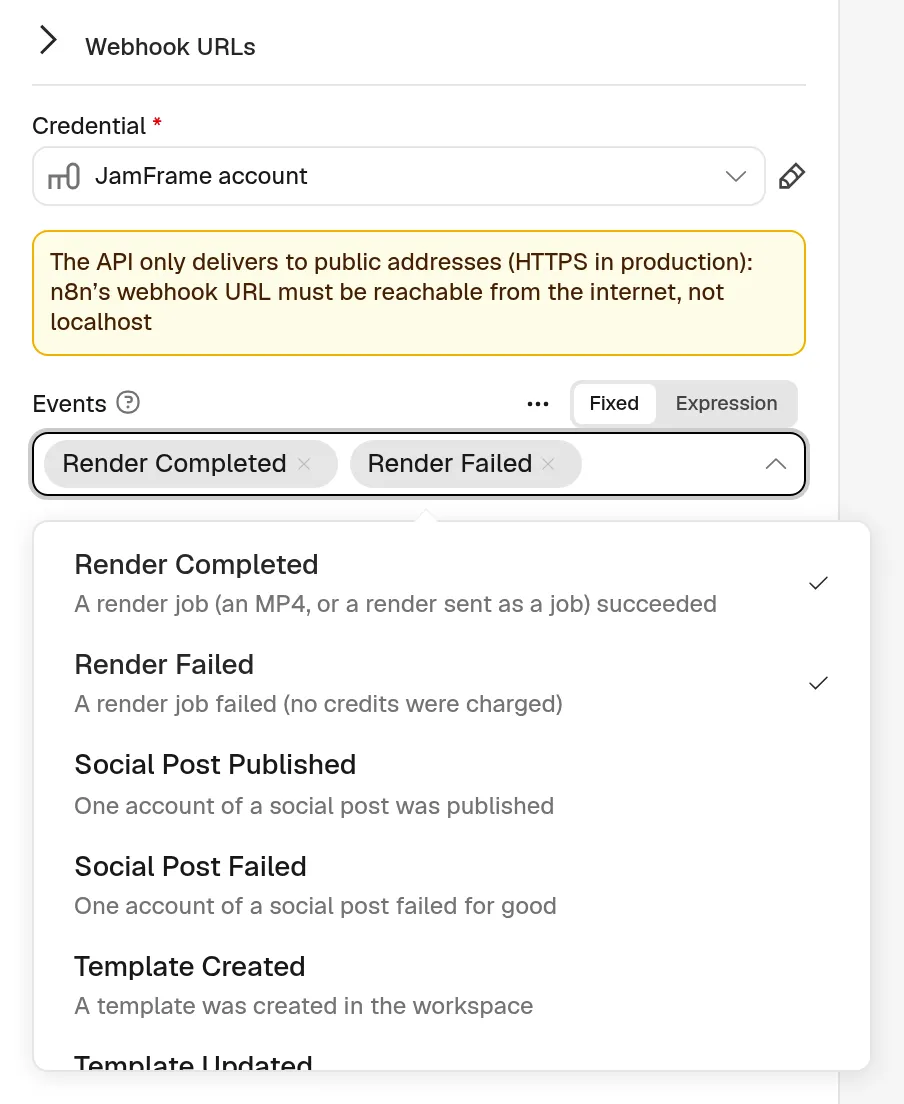
Pick the events that start your n8n workflow. -
Add the next steps, then click Publish. In older versions of n8n, switch the workflow to Active instead.
When you publish, the node adds a webhook to your JamFrame workspace for n8n’s address. You can see it on the Webhooks page in JamFrame. When you unpublish, the node deletes it. A workspace can have up to 20 webhooks, and each published trigger uses one.
What the trigger outputs
Each event starts the n8n workflow once, with one item:
| Field | What it is |
|---|---|
id |
The event’s id. |
type |
The event, such as render.completed. |
createdAt |
When the event happened. |
data |
The details: the render job, the template, or the JamFrame workflow run. See What JamFrame sends. |
deliveryId |
The delivery’s id. It stays the same if JamFrame sends the event again, so use it to skip repeats. |
For Render Completed, the file link is in data.result.content. It works for 5 minutes after the event is
sent.
JamFrame signs every event. The trigger checks the signature for you and turns away any event that fails the check. Leave Verify Signature under Options turned on.
n8n must be reachable from the internet
JamFrame only sends events to public https addresses. It doesn’t send to localhost or to a private network.
n8n Cloud already has a public https address, so the trigger works there as it is. If your n8n runs on your
own computer or a private server, give it a public https address first, for example
with a tunnel. Then set that address as n8n’s webhook URL. n8n’s guide shows how:
Configure webhook URLs.
Without it, publishing fails with an error such as url must use https:// or url must not target a private host.
Use it with n8n’s AI Agent
The JamFrame node also works as a tool for n8n’s AI Agent node. Connect it to the agent’s Tool input. The agent can then render templates, look up renders or run your JamFrame workflows when it needs to. Each render it makes uses credits, like any render.
When something goes wrong
If JamFrame turns down a request, the step fails with JamFrame’s message, such as
Quota exceeded: requested 3, remaining 1 of 100. The error code, such as QUOTA_EXCEEDED, is in the error’s
details. See Errors.
To keep going with the other items when one fails, open the node’s Settings and set On Error to
Continue. A failed item then has an error field instead of a result.
If you send too many requests at once, JamFrame answers 429. The node waits and tries again, up to twice. See
Rate limits.
| Problem | What to do |
|---|---|
| The credential test fails. | Check that you pasted the whole key, that the key isn’t revoked, and that Base URL is https://api.jamframe.com. |
| The Template list shows only library templates. | The key works in a workspace with no templates. Create a key in the workspace that has your templates. |
| A file link stopped working. | Links work for 5 minutes. Turn on Download Files, or get new links with Render → Get and the renderId. Files are kept 8 days. |
Publishing fails with url must use https:// or url must not target a private host. |
The internet can’t reach your n8n. See n8n must be reachable from the internet. |
| The trigger doesn’t fire after a render. | Only render jobs send render events. Turn on Run as Job. |
| The trigger stopped after n8n was down for a while. | After 20 failed deliveries in a row, JamFrame turns the webhook off. Unpublish the n8n workflow and publish it again: the node makes a new webhook. |
Related
- Create and manage keys: API keys
- Every event and what’s in it: Webhooks
- What uses credits: Credits
- The node’s code and its full reference: JamFrame-com/n8n-nodes-jamframe on GitHub
- Every endpoint the node calls: API reference (opens in a new tab)
Last updated
Still stuck?
Email [email protected] and a real person will reply. Tell us the template you were using and what you expected to happen.