
Import a design from Canva
Paste a Canva share link to turn a Canva design into a JamFrame template, with its text, photos and videos ready as API fields. What comes across, fonts, limits and errors.
Already have the design in Canva? Import it instead of building it again. You paste a Canva share link, and about a minute later the design opens in the editor as a template. Its text, photos and videos are already dynamic fields, so you can render it through the API, a workflow or an AI assistant straight away.
Only import designs you have the rights to use.
Share the design in Canva
JamFrame reads the design through a link that anyone can view. Every Canva plan can share one, including Canva Free.
- In Canva, open your design and click Share.
- Under Access level, set Anyone with the link to Can view.
- Click Copy link.
The link looks like https://www.canva.com/design/…/view. A short canva.link link works too. An edit
link (one that ends in /edit) doesn’t: it needs a Canva login.
Import it
- On the Templates page, click Import from Canva. The Import from Canva dialog opens.
- Paste the link into Canva design link.
- Click Import.
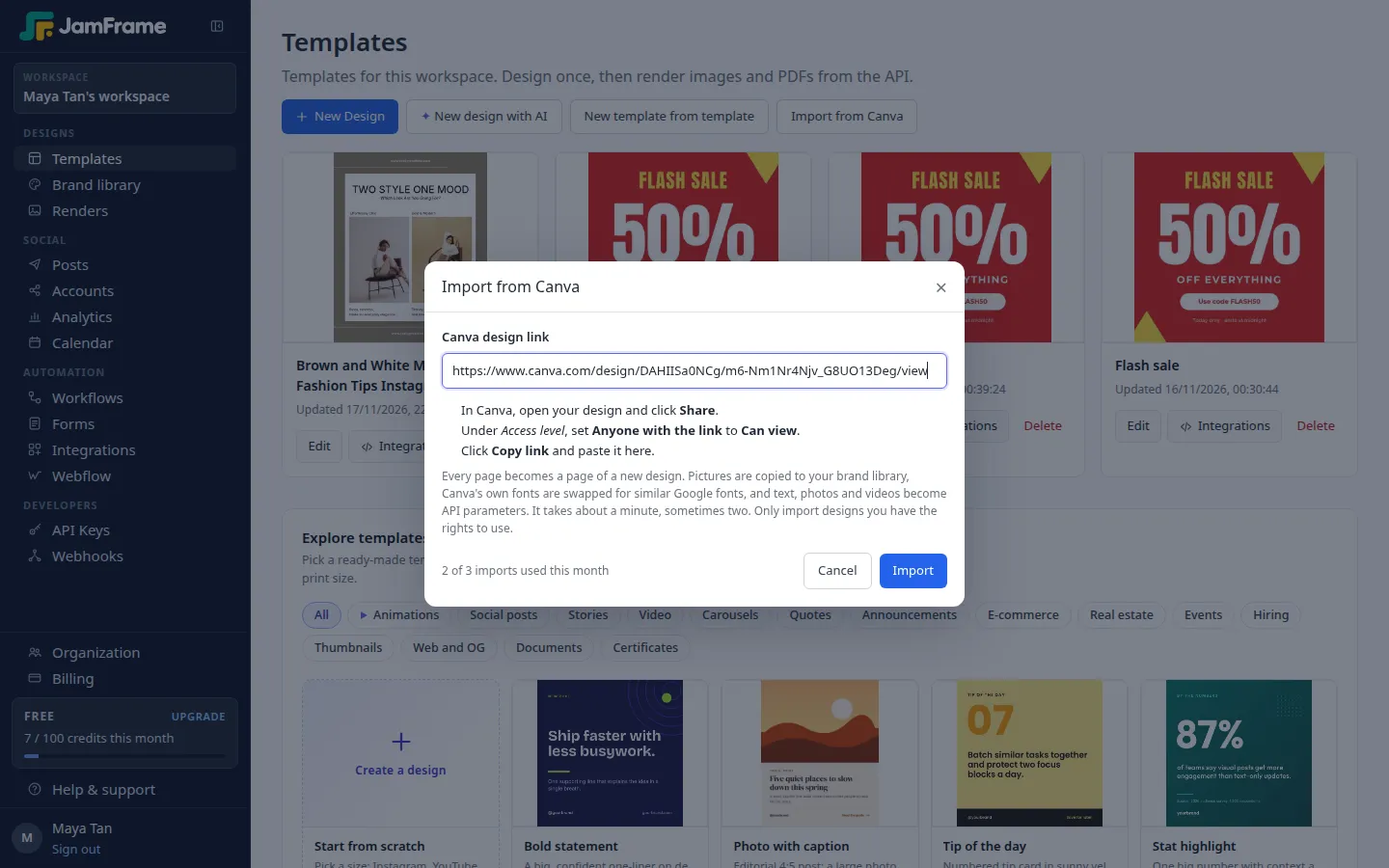
A bar shows how far the import has got. It takes about a minute, sometimes two, because Canva has to show every page. You can close the dialog: the import keeps going, and the template appears on the Templates page when it’s ready.
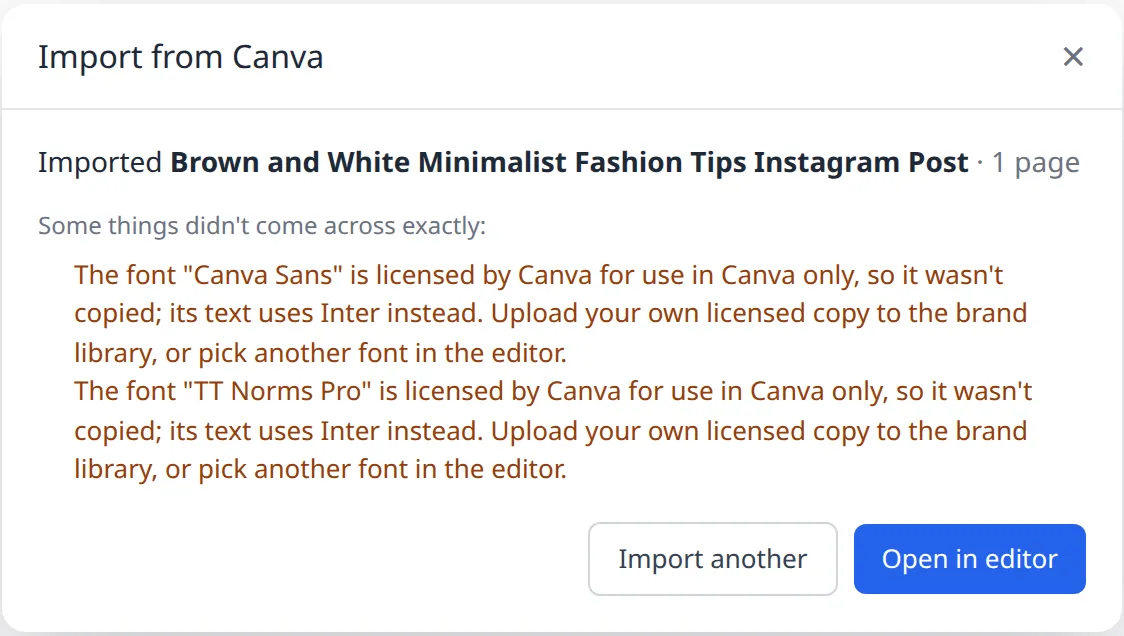
When it’s done, the dialog says how many pages came in. Click Open in editor to open the template, or Import another to paste the next link.
The new template is named after the Canva design. Your design in Canva doesn’t change.
What comes across
| In Canva | In JamFrame |
|---|---|
| Pages | Pages of one template, up to 20. A carousel stays a carousel. |
| Page color | The page’s background color. |
| Text | Text layers with their font, size, weight, color, alignment, line height and letter spacing. |
| Photos | Image layers, with their crop, flip and rotation. A photo frame keeps its shape: rounded, circle, heart, star and so on. |
| Rectangles, circles and lines | Shape layers. |
| Other graphics | Image layers made from the graphic. |
| Videos | Video layers that loop without sound. |
Layouts made of text, photos and simple shapes come across well: social posts, posters, flyers, certificates and carousels.
Some things are flattened or left out:
- Text effects: shadows, outlines, curved text, highlight backgrounds and underlines.
- Mixed styles in one text box: the box takes the style of its longest part.
- Effects Canva draws itself, such as some gradients, blurs and duotone photos.
- Animations and page transitions.
- Charts, tables and embeds come across only as the picture Canva shows, if at all.
When an import finishes, the dialog lists anything that didn’t come across exactly, under “Some things didn’t come across exactly”. Fix those parts in the editor.
Fonts
- Google Fonts come across as they are.
- Canva’s own fonts, such as Canva Sans, and other fonts Canva licenses are for use in Canva only. JamFrame doesn’t copy them. It uses a similar Google font instead, and the import’s notes name each font and what replaced it.
- A font you own: upload it to your brand library, then import the design again. A font that’s already in the library is used.
A different font can wrap text a little differently, so check long lines after the import. See Text and fonts to change a font in the editor.
The API fields
The import turns the parts that usually change into dynamic fields, each with a key:
| Layer | Key |
|---|---|
| Text | A key from its first words: “Summer sale” becomes summer_sale. The same text on several pages shares one key, so one value changes them all. |
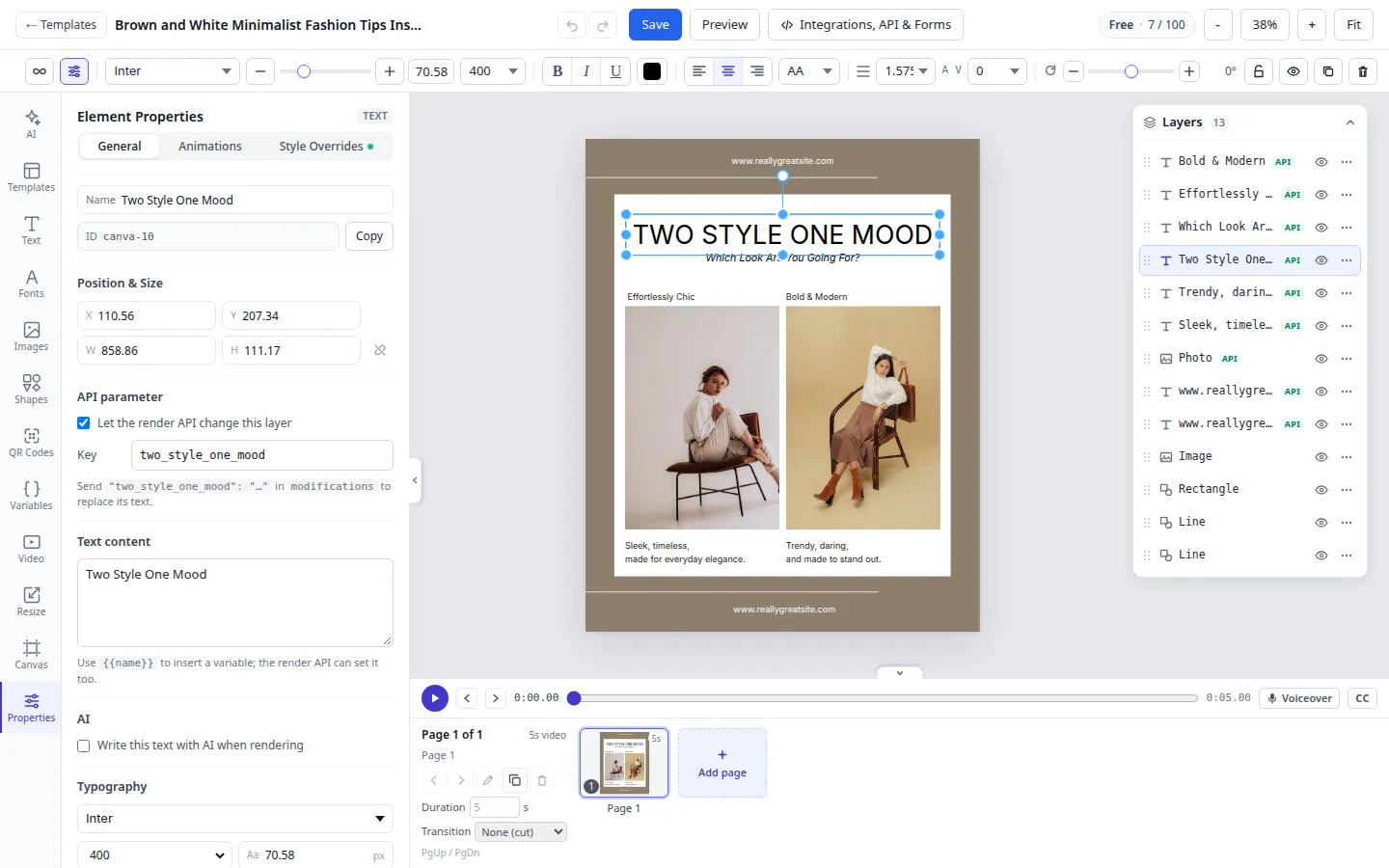
| Large photos | photo, photo_2, photo_3 and so on. A photo that fills the page is background. |
| Videos | video, video_2 and so on. |
One-line text keeps its height and shrinks to fit, so a longer value sent through the API stays on one line. Text with several lines grows instead.
To rename a key, or to make another layer dynamic, select the layer and change API parameter in Element Properties. Then click Integrations on the template to see every key and copy a ready-made request. See Test render.
Limits
| Limit | |
|---|---|
| Imports a month | 3 on Free, no limit on paid plans. Failed imports don’t count. |
| At the same time | 2 imports per workspace. |
| Pages | Up to 20 per design. |
| Time | About a minute, sometimes two. |
The count is for your whole organization and starts again on the first day of each month.
If an import doesn’t work
| Message | What to do |
|---|---|
| That is an edit link, which needs a Canva login. | In Canva, click Share, set Anyone with the link to Can view, and copy that link instead. |
| That is a Canva template page, not a design. | Open the template in Canva so it becomes your own design, then share that design. |
| Only canva.com design links can be imported. | Paste a link that starts with https://www.canva.com/design/ or https://canva.link/. |
| Canva did not show a design at that link. | The design isn’t shared yet. Set Anyone with the link to Can view, then try again. |
| Your plan includes 3 Canva imports a month and 3 have been used. | Click See plans to upgrade, or wait until next month. |
| 2 imports are already running in this workspace. | Wait for one to finish. |
| Canva took too long to show the design. | Try again, or import a copy of the design with fewer pages. |
| This design is too large to import. | Try a copy with fewer pages or pictures. |
| Canva import is not available right now. | Try again in a few minutes. If it keeps happening, contact support. |
Change the design later
The import makes a copy, so changes you make in Canva later don’t reach JamFrame. Either edit the template
in JamFrame, or import the design again. A new import makes a new template with a new ID, so update the
templateId wherever you use the old one.
What next
- Try your template: Test render.
- Render it from your code: Render.
- Fill it from a sheet on a schedule: Workflows.
- Compare this with Canva’s own autofill API: Canva automation.
- Move off Canva Bulk Create: JamFrame vs Canva Bulk Create.
- See what else connects to JamFrame: Canva integration and all integrations.
Last updated
Still stuck?
Email [email protected] and a real person will reply. Tell us the template you were using and what you expected to happen.